Download Mobile App
A project communication plan is not a document you create once and forget. It is the operating agreement for how a team shares decisions, blockers, updates, risks, meeting notes, files, and urgent questions while the work is moving. When that agreement is missing, even capable teams lose time in duplicated updates, silent blockers, and meetings that repeat the same context.
This guide shows how to build a practical project communication plan for remote teams, startup operators, and project managers who need clarity without adding ceremony. You will get a simple structure, examples, a checklist, and channel rules that connect communication to actual work rather than another static template.
Quick takeaway: A useful communication plan answers five questions: who needs to know, what they need, where the update lives, when it happens, and who owns the follow-up.
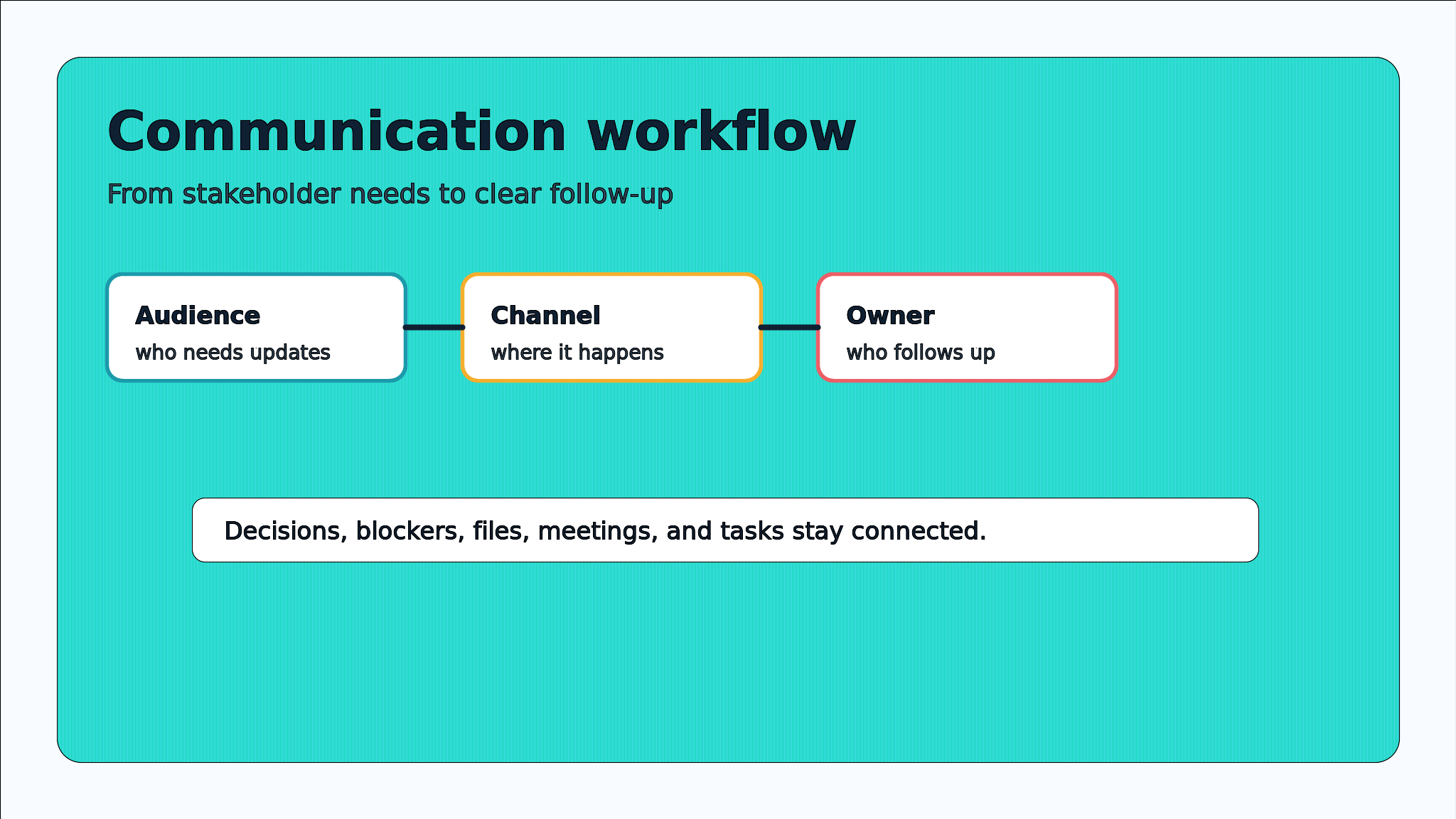
 What a project communication plan should actually decide
Many teams make communication planning too abstract. They list stakeholders, write “weekly updates,” and assume the work is done. The better approach is to decide how information moves when the project is under pressure. That includes routine status, urgent blockers, decision records, file handoffs, customer feedback, and changes to scope or timing.
- Audience: the person or group that needs the information, such as founders, project sponsors, delivery teams, customers, or vendors.
- Message type: the category of information, such as status, risks, decisions, approvals, blockers, or meeting notes.
- Channel: the place where that message should live, such as a task comment, project doc, chat thread, shared file, or video meeting.
- Cadence: the rhythm for planned communication and the trigger for urgent communication.
- Owner: the person accountable for posting, updating, or escalating the message.
Edworking tip: Teams using Edworking can keep the plan, project tasks, docs, files, chat threads, and video meetings in one workspace, so the plan points to real places instead of scattered tools.
A simple project communication plan structure
Use a structure that is specific enough to guide behavior, but light enough for the team to maintain. A startup shipping a product update does not need a forty-page communications manual. It needs a shared rulebook for where information belongs and what happens next.
- Project context: goals, timeline, scope boundaries, decision makers, and known constraints.
- Stakeholder map: internal team, leadership, customers, contractors, vendors, and anyone who approves or depends on the work.
- Channel rules: what belongs in tasks, docs, chat, meetings, files, and async updates.
- Update rhythm: daily, weekly, milestone-based, or exception-based communication.
- Escalation path: when a blocker becomes urgent, who is notified, and how quickly a response is expected.
- Decision record: where decisions are captured and how the team links them to work.
If the project already has dependencies and handoffs, pair the communication plan with a project dependency map template so owners know when an update is informational and when it affects another team.
Structured comparison: which channel should hold each message?
A plan becomes useful when it removes channel confusion. Instead of asking whether every update deserves a meeting, define the best home for each message type. The table below is saved as structured bullets so it stays Sanity-safe while still giving readers a comparison they can scan.
- Status updates: use a project doc or recurring status report; best when the audience needs a stable record and trend over time.
- Urgent blockers: use a task comment plus chat mention; best when work is stopped and a specific owner must respond.
- Scope decisions: use a decision log or project doc; best when the team needs future context and approval history.
- Detailed feedback: use comments on a task, file, or doc; best when feedback needs to stay attached to the work item.
- Complex alignment: use a video call and save notes afterward; best when ambiguity is high and written updates would create a long debate.
Decision rule: If a message changes work, attach it to the task or decision record. If it only creates awareness, summarize it in the status update.
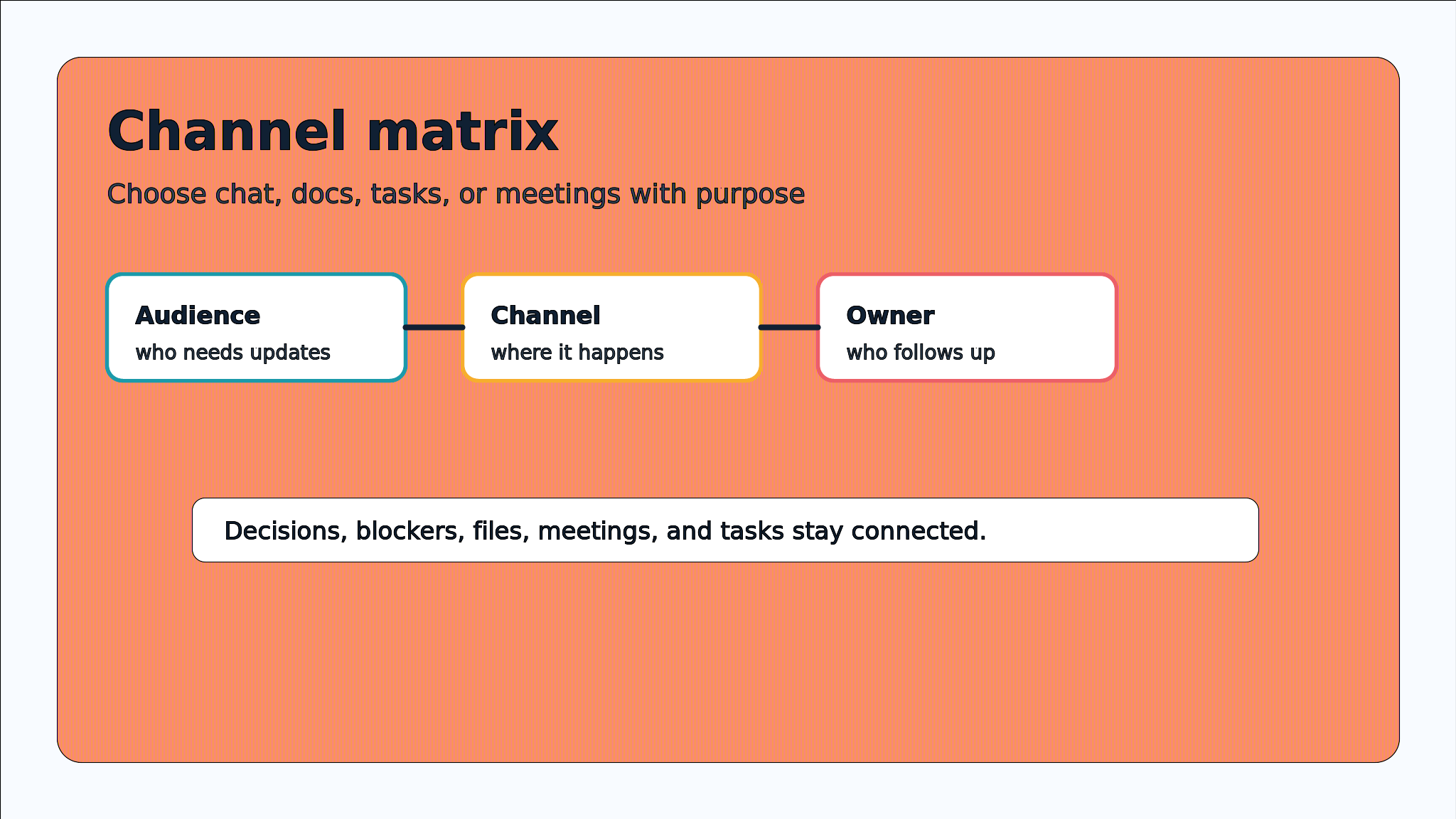

Step-by-step: build the plan in 45 minutes
You can create a useful first version quickly. The goal is not perfection; it is to make the next week of communication clearer than the last one. Bring the project owner, one delivery lead, and one stakeholder representative if possible.
- List the audiences that need project information and mark which ones approve, execute, review, or only need awareness.
- Write the five most common message types the project will produce: status, blockers, risks, decisions, feedback, or handoffs.
- Assign one default channel to each message type and name the owner who maintains it.
- Choose the cadence for recurring updates, such as weekly sponsor summary, daily delivery check, or milestone review.
- Define escalation triggers, including missed deadlines, blocked dependencies, budget risk, customer issue, or scope change.
- Review the plan after one week and remove rules the team did not use.
For recurring summaries, connect the plan to a project status report template so status communication has the same format every week.
Practical example: remote product launch team
Imagine a ten-person remote startup preparing a product launch. Product owns scope, engineering owns delivery, marketing owns launch assets, support owns customer readiness, and the founder wants a short weekly view. Without a communication plan, every small change turns into a scattered trail across chat, calls, comments, and files.
Example: The team decides that launch status lives in one weekly doc, blockers live on tasks with a chat mention, final go/no-go decisions live in a decision log, and campaign assets stay in the file area linked from launch tasks.
- Founder update: weekly summary with progress, risk, decisions needed, and launch confidence.
- Delivery team: task-level blockers and dependency updates inside the project board.
- Marketing and support: shared docs for copy, release notes, customer FAQs, and asset approvals.
- Urgent issue: chat alert that links back to the blocked task instead of starting a disconnected thread.
A decision log template is especially helpful when launch timing, scope, or messaging changes and the team needs to remember why.
Checklist: what to include before kickoff
Before a project starts, review the plan like a readiness checklist. These items are saved as real bullet blocks rather than raw checkbox markdown so they render safely in Sanity.
- Confirm the project owner and backup owner are named.
- Confirm each stakeholder group has a clear update type and cadence.
- Confirm the team knows where status, risks, decisions, files, and blockers belong.
- Confirm the escalation rule names the person, channel, and response expectation.
- Confirm meetings have a purpose and a place where notes become tasks or decisions.
- Confirm the plan includes a review date so unused rules can be simplified.
Mistake to avoid: Do not create separate communication rules for every possible scenario. Too many rules make the plan harder to use than the problem it is supposed to solve.
Common mistakes and better alternatives
Communication plans fail when they look complete but do not change team behavior. Watch for these failure patterns early, especially in remote teams where silence can hide blockers for days.
- Mistake: every update goes to chat. Better approach: use chat for alerts and keep decisions, files, and status in durable records.
- Mistake: the plan names channels but not owners. Better approach: assign ownership for each recurring update and escalation path.
- Mistake: meetings become the default channel. Better approach: reserve meetings for ambiguity, conflict, or decisions that need live discussion.
- Mistake: stakeholders receive too much detail. Better approach: separate sponsor summaries from delivery-level task updates.
- Mistake: decisions are buried in meeting notes. Better approach: move decisions into a searchable log and link them to the affected work.
Edworking tip: Edworking Brain can help a team ask questions about project docs and context, but the source information still needs to be captured in clear tasks, docs, files, and notes.
How Edworking turns the plan into a working system
A communication plan only works if the team can follow it during normal work. If the plan says “share blockers in the task,” but tasks live in one app and discussion happens somewhere else, the rule breaks quickly. The same problem appears when meeting notes, files, approvals, and decisions are separated across too many tools.
- Tasks keep ownership, deadlines, blockers, and follow-up in the same place.
- Docs hold the plan, decision records, meeting notes, and weekly summaries.
- Files stay attached to the project context instead of floating in separate folders.
- Chat handles fast clarification while linking back to the task or doc that needs attention.
- Video calls support high-context conversations, with notes saved into the workspace afterward.
If you are setting up a new team workspace, start with Getting Started With Edworking and adapt your communication plan to the way your team already manages tasks, docs, files, chat, and meetings.
FAQs
- Use the communication plan to set rules; use the status report to execute one recurring rule.
- The owner keeps the plan current and checks whether the team is following it.
- A lightweight monthly review is usually enough for active projects unless risk is high.
- The smaller the team, the more practical and lightweight the plan should be.
Turn communication into follow-through
A project communication plan is useful when it reduces uncertainty and creates follow-through. It should tell people where to look, where to write, when to escalate, and how decisions become work. If it does not do that, simplify it until it does.
Start with the audiences, message types, channels, cadence, and owners. Then test the plan against real project moments: a blocker, a scope change, a sponsor update, a missing file, and a meeting decision. If the plan handles those moments clearly, it is ready to use.
Next step: Build the plan in the same workspace where the project lives, so every update can connect back to tasks, docs, files, chat, and meetings instead of becoming another disconnected document.