Download Mobile App
Client Collaboration Portal: Guide for Small Teams
A client collaboration portal gives small teams one shared place to manage client work, instead of spreading updates across email threads, file links, chat apps, and meeting notes. The word portal can sound heavy, but the useful version is simple: clients can see what matters, your team can keep work moving, and everyone has a clear source of truth.
This guide explains how to design a practical portal workflow for client-facing projects. It is written for agencies, consultants, startup teams, implementation partners, and operations leads who need cleaner client communication without adding another complicated system.
**Quick takeaway:** A good client collaboration portal is not just a folder of files. It combines project status, tasks, shared documents, decisions, questions, files, meetings, and next steps in one workspace with clear ownership.
 What a client collaboration portal should actually do
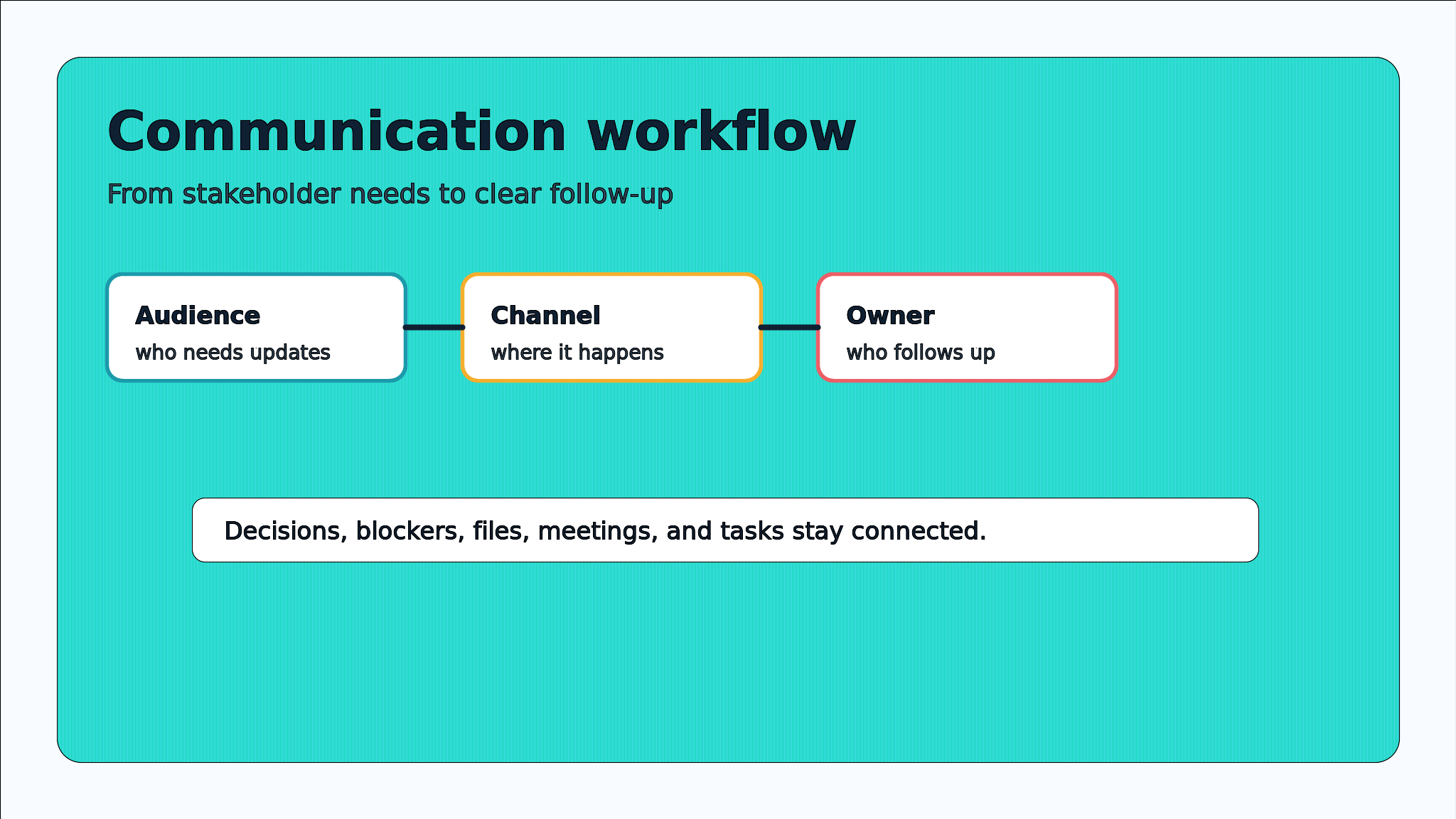
The best portal is less about software polish and more about reducing uncertainty. A client should be able to answer three questions without sending a message: what is happening, what needs my input, and where is the latest version?
Internally, your team should be able to see the client context before making a decision. That includes the scope, agreed priorities, recent feedback, open blockers, shared files, and the next action owner.
- Show project status in plain language, not only internal task names.
- Collect client questions and decisions where the work happens.
- Connect files, docs, messages, and meetings to the related task or milestone.
- Make approvals visible so work does not stall in private inboxes.
- Keep a lightweight history of what changed and why.
Client portal vs shared folder vs project management tool
Many teams start with a shared folder because it is familiar. That helps with files, but it rarely solves ownership, approvals, status, or discussion. A project management tool can solve tasks, but clients often struggle when the setup exposes too much internal complexity.
A client collaboration portal sits between those two extremes. It gives clients enough visibility to collaborate while protecting the internal planning details your team still needs.
- **Shared folder:** Good for final assets and reference files, weak for decisions, ownership, and progress.
- **Project board:** Good for internal delivery, risky when every internal task or comment is exposed to the client.
- **Client collaboration portal:** Best when it combines client-visible status, selected tasks, docs, files, questions, approvals, and meeting notes.
**Decision rule:** If the client needs to approve work, answer questions, review files, or track delivery, a shared folder is not enough. Give them a collaboration space with context and next steps.
The minimum portal structure for small teams
A small team does not need a huge implementation. Start with the smallest structure that prevents repeated questions and missed handoffs. You can always add views later once clients are actually using the workspace.
- Create a welcome page that explains the project, owners, timelines, and communication rules.
- Add a status area with current priorities, active blockers, upcoming deadlines, and recent decisions.
- Use client-visible tasks only for actions that need client input, approval, or awareness.
- Keep shared docs close to the related work, not hidden in a separate document library.
- Store final files and working files in clearly labeled folders with version notes.
- Link meeting notes to follow-up tasks so decisions become action.
Teams using Edworking tasks and Edworking docs can keep the same structure in one workspace: task owners, client notes, project files, chat questions, and meeting follow-ups stay connected.
What to make visible to clients and what to keep internal
A useful portal does not mean the client sees everything. In fact, too much visibility can create noise. The goal is curated transparency: enough context for trust and collaboration, without exposing internal debate, rough notes, or unfinished planning that will confuse the client.
- **Visible to clients:** key milestones, current status, approved timelines, shared files, final decisions, meeting notes, open questions, and tasks that require client action.
- **Internal only:** resourcing discussions, private estimates, sensitive team feedback, draft strategy debates, and work-in-progress ideas that are not ready for review.
- **Shared when ready:** drafts, mockups, proposals, implementation notes, and decision options that need client input.
**Mistake to avoid:** Do not turn the portal into a mirror of your internal workspace. Clients need clarity, not every internal step your team takes to produce the work.
A practical client onboarding checklist
The first week sets the tone for the whole client relationship. If the portal is unclear at the start, clients will fall back to email and side messages. Use onboarding to teach the workflow quickly.
- Create the client workspace before the kickoff call.
- Add the client sponsor, day-to-day contact, and internal owner.
- Publish the project brief, scope, timeline, and communication rules.
- Add the first three client actions as visible tasks with due dates.
- Upload or link the files the client will need immediately.
- Create a questions thread or doc so feedback does not scatter across channels.
- After the kickoff call, add notes and convert decisions into tasks.
For teams already building a broader operating rhythm, connect the portal to your team collaboration workspace so client updates do not become a separate island.
Example workflow: an agency managing a website redesign
Imagine a five-person agency managing a website redesign for a client. Without a portal, the project usually fragments. Design comments live in one tool, copy feedback arrives by email, timelines are discussed on calls, and files are stored in multiple folders.
**Example:** The agency creates one client workspace. The welcome doc explains scope and roles. A client-visible task list shows copy approval, homepage design review, analytics access, and launch checklist items. Meeting notes link to each follow-up. The client uploads brand files to the project file area, then asks questions in the same workspace instead of starting new email threads.
That workflow does not remove human communication. It gives communication a home. When the client asks for a change, the team can link the request to a task, attach the right file, discuss the tradeoff, and schedule a short call only when live discussion is actually needed.
If your team uses AI support, Edworking Brain can help summarize workspace context, turn meeting notes into action items, and make it easier for teammates to find the latest client decision.
Common mistakes that make portals fail
Most portal failures are adoption problems, not feature problems. The client does not use the portal because it feels incomplete, confusing, or slower than sending a message. Fix the workflow before adding more tools.
- **Too many places to look:** Choose one status page, one file area, and one question path. Avoid duplicate folders and duplicate update threads.
- **No clear owner:** Every client action should have one owner, one due date, and one expected output.
- **Internal language:** Replace delivery-team shorthand with client-friendly status. Use words like waiting for approval, ready for review, blocked by access, or scheduled.
- **No update cadence:** Add a weekly update, even when nothing dramatic changed. Silence creates uncertainty.
- **Files without context:** Every important file should connect to a milestone, task, decision, or doc that explains why it matters.
How Edworking supports client collaboration
A client collaboration portal works best when the core pieces are connected. In Edworking, teams can bring tasks, docs, files, chat, video calls, and AI into one workspace instead of asking clients to follow separate tools for each part of the relationship.
That matters for small teams because there is usually no dedicated operations person chasing every update. The workspace itself should make the next step obvious. A client can see what needs review, a teammate can find the latest document, and a founder can understand project health without digging through private messages.
- Use tasks for client actions, approvals, and owner clarity.
- Use docs for briefs, proposals, notes, decisions, and playbooks.
- Use files for approved assets and working materials.
- Use chat and video when discussion is needed, then capture outcomes back in docs and tasks.
- Use AI to summarize context and reduce repeated searching.
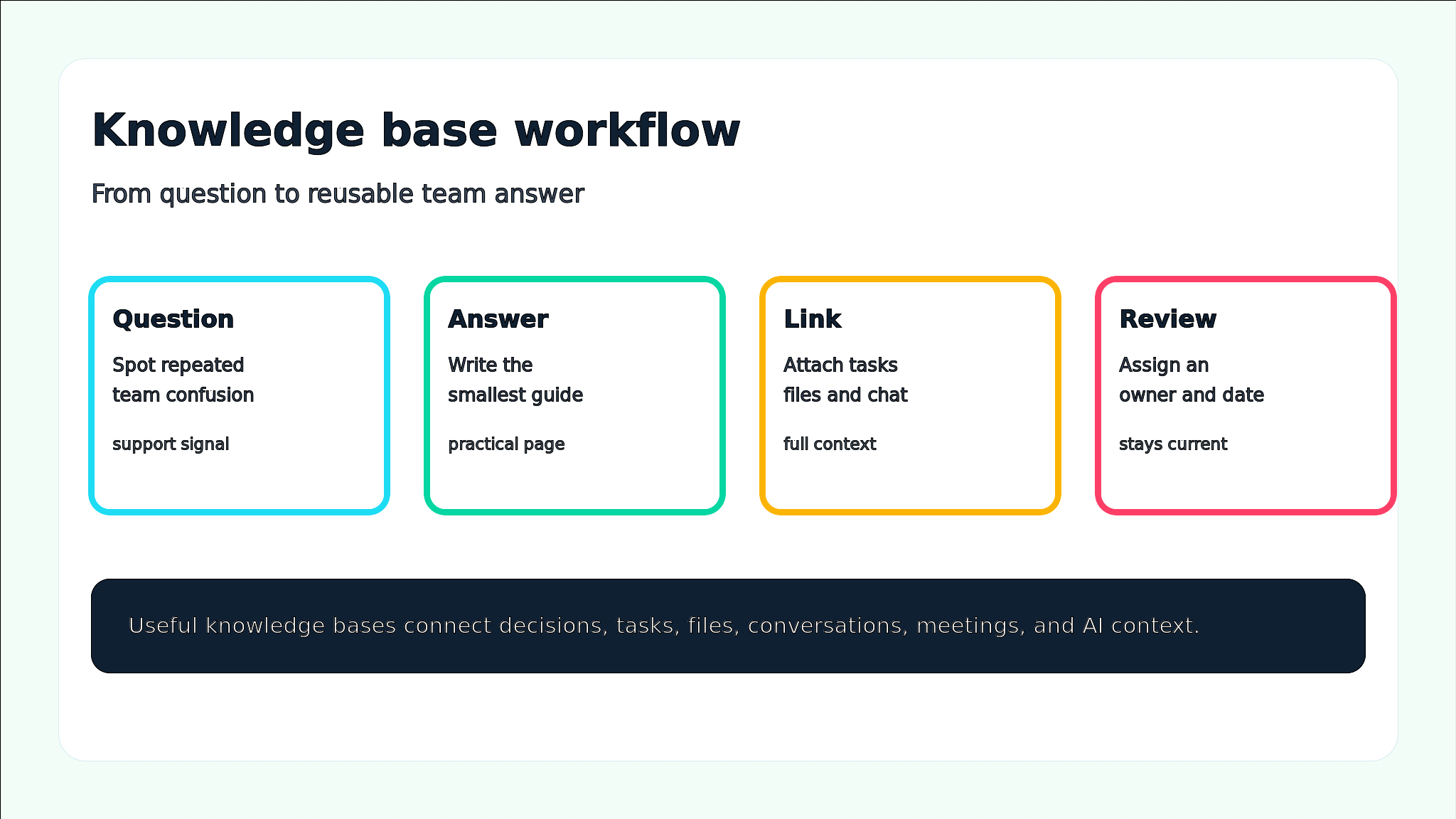
For more detail on keeping work knowledge useful over time, pair this setup with a simple team knowledge base process.
Simple metrics to keep the portal healthy
Once the portal is live, measure whether it is reducing coordination work. You do not need a complex dashboard. A small set of operating signals will show whether clients understand the workspace and whether your team is keeping it current.
- **Client action age:** how long approval or feedback tasks stay open after they are assigned to the client.
- **Unanswered questions:** how many client questions are waiting for a clear owner or response.
- **Update consistency:** whether the status area was refreshed during the agreed weekly cadence.
- **File clarity:** whether final files, drafts, and archived versions are labeled so clients know which one to use.
- **Meeting conversion:** how many live meetings produce written decisions, assigned tasks, or updated docs afterward.
**Edworking tip:** Treat the portal like a working system, not a static client folder. If an update happens in chat or a call, turn the outcome into a task, doc note, or file comment before the context fades.
These metrics are also useful during retrospectives. If approvals are slow, the client may need fewer tasks with clearer due dates. If questions pile up, your team may need a better owner model. If files are confusing, simplify naming before adding more folders.
Access and trust rules for client-facing work
Client collaboration improves trust only when access feels intentional. Before inviting a client, decide what they should see, who can add files, who can start calls, and where sensitive internal notes should live. A simple access rule prevents awkward cleanup later.
- Invite people by role, not habit: sponsor, day-to-day contact, finance reviewer, technical reviewer, or external partner.
- Keep one internal owner responsible for workspace hygiene and client onboarding.
- Review access at major milestones, especially when a contract phase ends or a stakeholder changes.
- Use client-friendly names for shared docs and files so the workspace can be understood without a walkthrough.
This is especially important for startups and agencies that manage several clients at once. Repeatable access rules help every client workspace feel professional while keeping private delivery work separate from the shared project record.
FAQs
Build a portal that reduces follow-up work
- Start with one client project, one visible status area, three client action tasks, and a weekly update rhythm before expanding the portal.
A strong client collaboration portal reduces the number of times your team has to answer the same question, resend the same file, or reconstruct the same decision. It gives clients confidence while protecting your team from scattered context.
If client work is currently spread across inboxes, folders, chat apps, and meetings, start with one connected client collaboration workspace. Keep the structure simple, make ownership visible, and turn every important conversation into a task, doc, file, or decision that the whole project can trust.
Agencies that manage multiple clients can pair a client portal with this agency project management guide to keep requests, tasks, files, approvals, and handoffs visible.