Download Mobile App


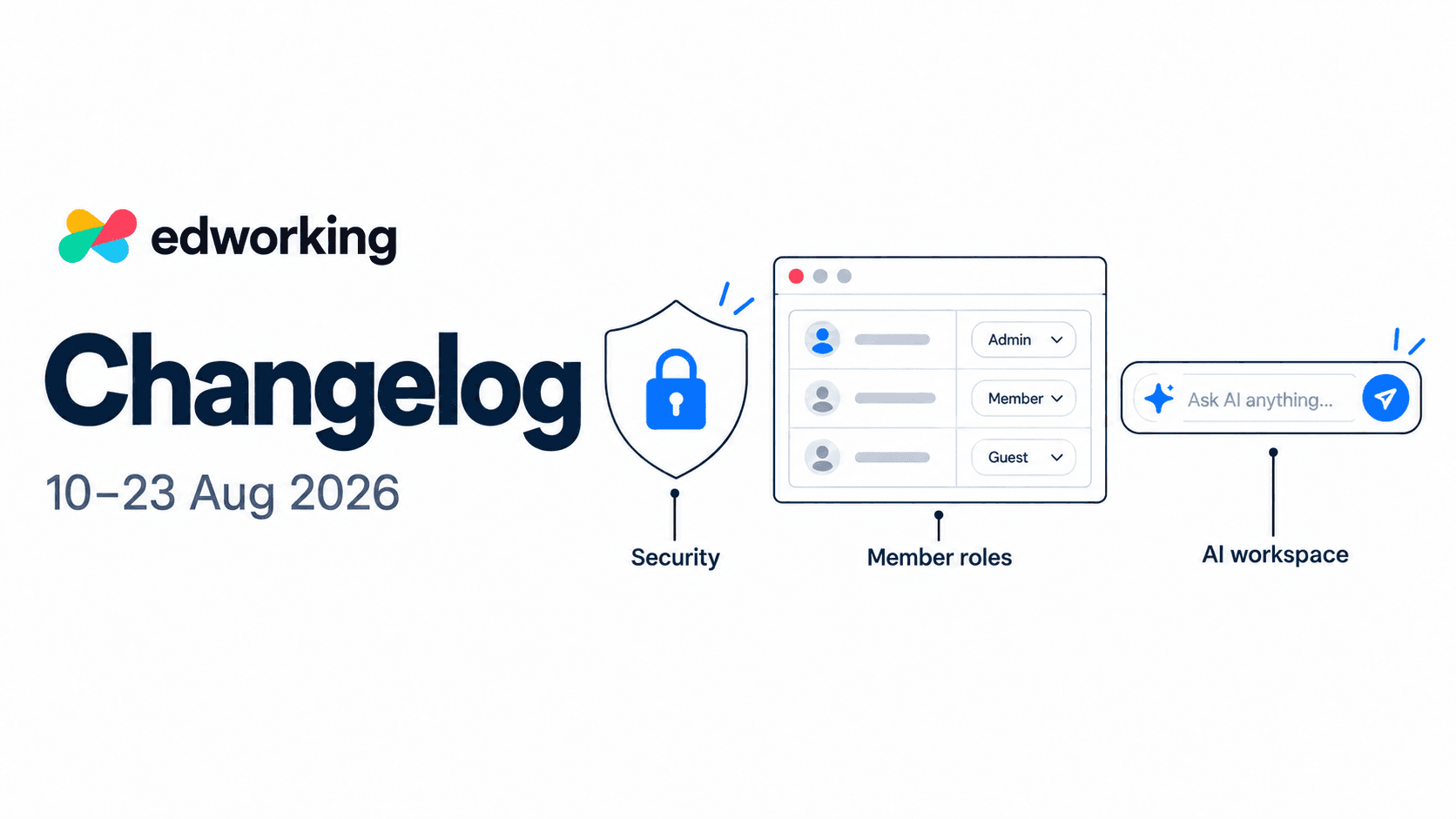
This fortnight brings more control over workspace access, AI help closer to your work, and a guided way to bring ClickUp tasks into Edworking. File previews and smaller task and calendar improvements round out the update.
This is a retrospective edition covering 10–23 August 2026. Screenshots show the current web interface; some details have evolved since the original updates.
Add a second step to sign-in
Web · New security settings
Two-step verification adds an authenticator code to the sign-in process. Set it up from Security in your account settings, link your authenticator app and confirm the six-digit code.
The setup also provides single-use recovery codes. Save them somewhere safe when they appear: they let you sign in if you lose access to your authenticator app, and are only displayed once.
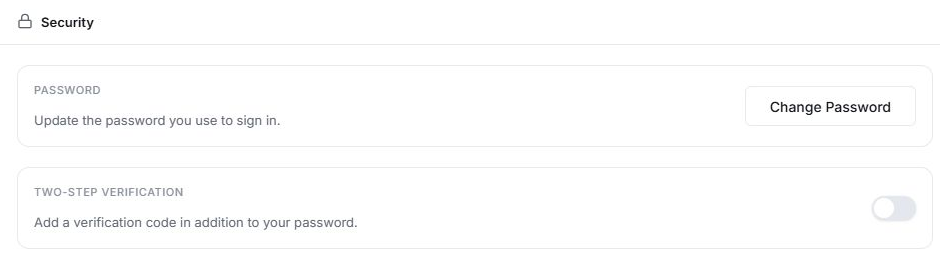
Password changes now have a dedicated place in the same Security page. This brings the account controls together so you can find them without searching through general preferences.
Try it: open your account settings and select Security. Review the setup instructions before activating two-step verification, and keep your recovery codes private.
Give each teammate the right role
Web · New · Role assignment on the Business plan
Workspace roles make responsibilities clearer as your team grows. The Roles page explains the four fixed roles—Owner, Admin, Member and Guest—and shows which actions each one can perform.
Owners have full workspace access, including workspace deletion. Admins manage members, billing and workspace settings. Members work in spaces and create content, while guests have limited access to spaces they are invited to.
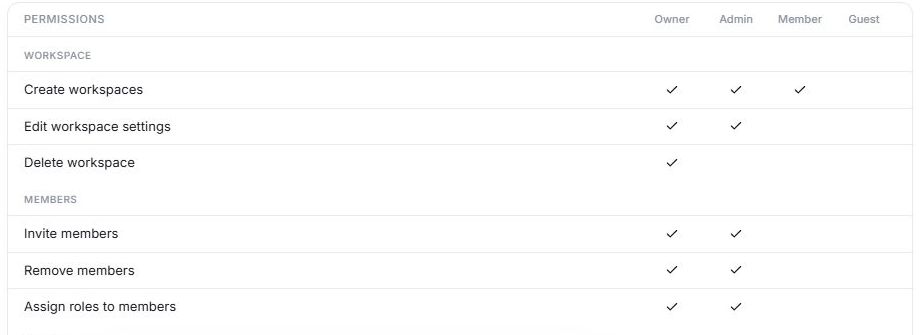
Role changes happen in the Members tab and require permission to assign roles. Role assignment is a Business-plan feature.
Try it: compare the permissions in Roles, then review the role assigned to each person in Members. For a growing project team, this gives you a clear way to distinguish workspace administration from day-to-day collaboration.
Ask AI without leaving the page
Web · New contextual AI bar
The workspace AI bar brings a prompt directly into the page you are using. Its context and suggested actions adapt to areas such as tasks, documents and workspace settings, so you can ask for help while keeping the relevant work in view.
For example, the bar can offer prompts to summarise a task board, find a document or explain a setting. When working with a selected passage in a document, you can focus your question on that text.

You can open the conversation in the side panel when you need more room and return to previous AI conversations from the bar. Available actions depend on the context and your workspace’s AI access.
Try it: open a task or document and use the AI bar to ask a focused question. Start with a summary, check it against the source, and then decide what to change.

Bring ClickUp tasks into Edworking
Web · New ClickUp CSV import
This period introduces the ClickUp import flow. Export the work you want to move as a CSV, open Import in your workspace settings and choose ClickUp.
The guided flow lets you upload the export, review the tasks and states, and map ClickUp assignees to workspace members before confirming. Unmatched assignees can be left unassigned for you to review afterwards.
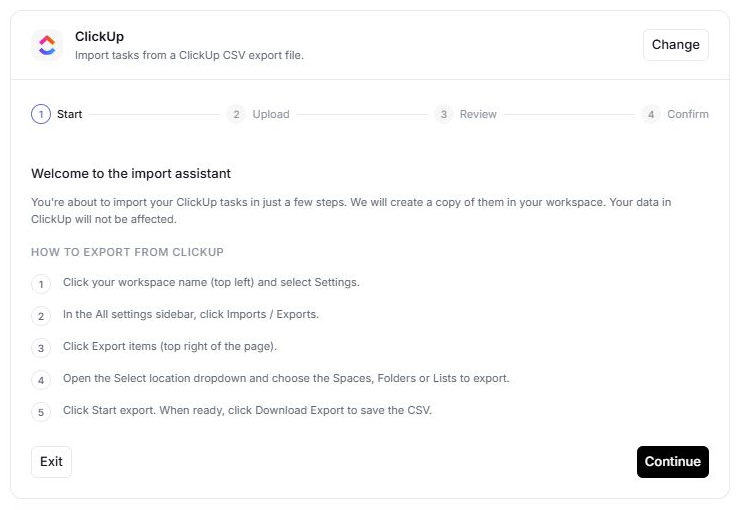
The import creates a copy in Edworking and leaves your ClickUp source unchanged. Access requires permission to create spaces.
Try it: begin with one project. Check the imported task count, states and owners before moving the rest of your work. This edition covers the initial ClickUp import; additional sources and Notion documents are covered in the next changelog.
Explore task management in Edworking
Recognise files and move between views more easily
Web · File browsing improvements
File cards gain previews for supported image, video, PDF, text and Markdown files. Recognisable thumbnails make it easier to pick out the item you need when several files have similar names.
Navigation controls also help you move back and forward through files, documents and tasks. Space headers return you to the relevant section, while clearer selection and drag feedback make file interactions easier to follow.
Try it: open Files in a space that contains a mix of supported formats, then move between an item and its surrounding view using the navigation controls.
Smaller fixes for everyday work
Web · Improvements and fixes
- Sections containing tasks cannot be deleted. Move or remove the tasks first, then delete the empty section.
- Typing an event’s end time updates the field correctly, making keyboard-based scheduling more reliable.
- The mobile-browser welcome screen makes the desktop app download option easier to discover.
Try the updated workspace
Open Edworking to explore these updates. New to the platform? Take the interactive product demo to see how tasks, documents and conversations fit together; individual recent features may not yet appear in the demo.
Already using Edworking? Choose one practical next step: review member roles, set up two-step verification or test a ClickUp import with a small project.
Continue with the 24 August–6 September changelog for expanded imports, public board sharing, Writer and teammate profiles.