Download Mobile App


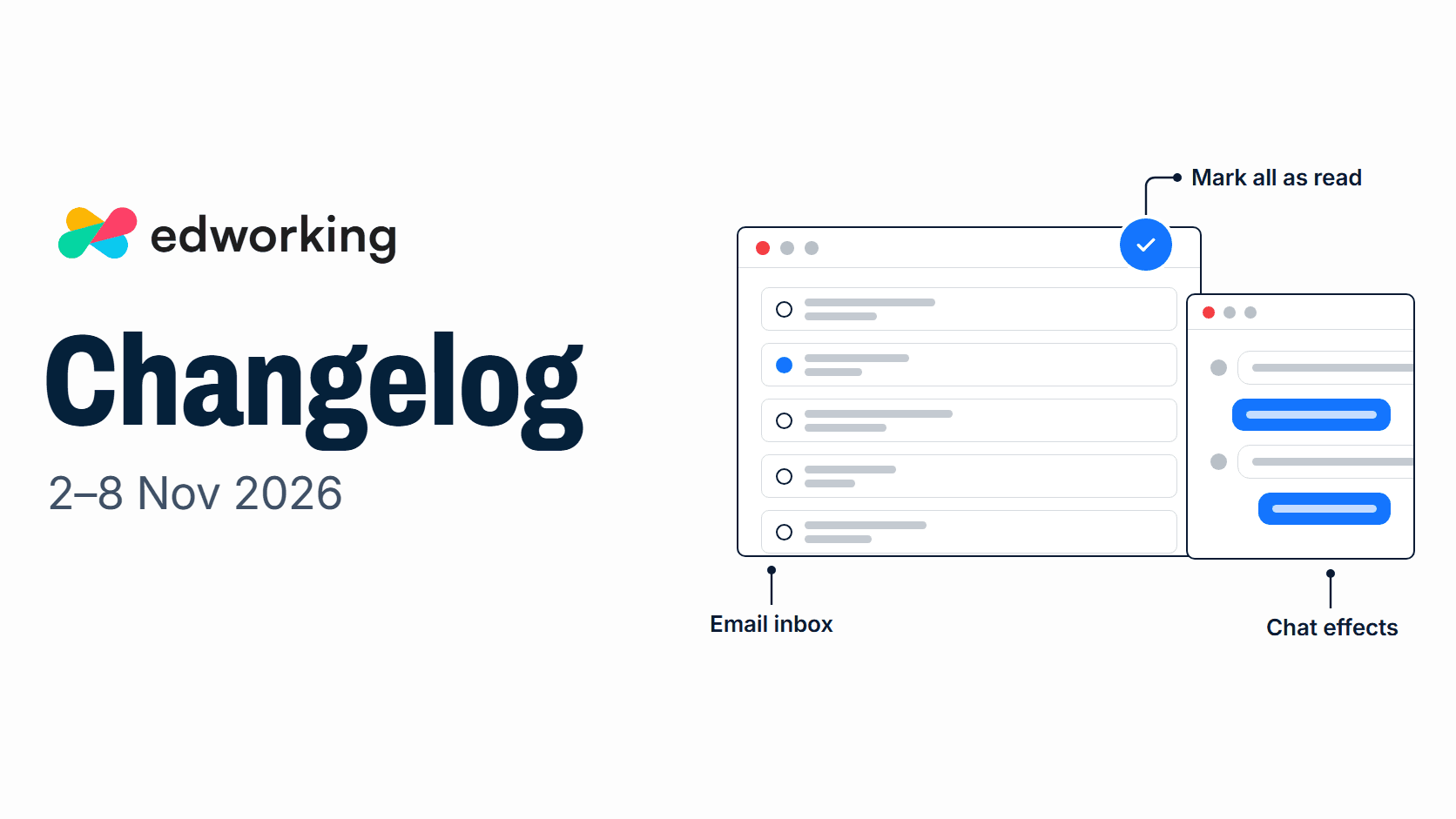
Your Gmail inbox now works inside Edworking, and catching up gets quicker with one-click mark all as read for threads and notifications. Chats also get effects for the moments worth celebrating. Here’s what changed on the web, plus the mobile work that reached testing.
Bring your Gmail inbox into Edworking
Web · New
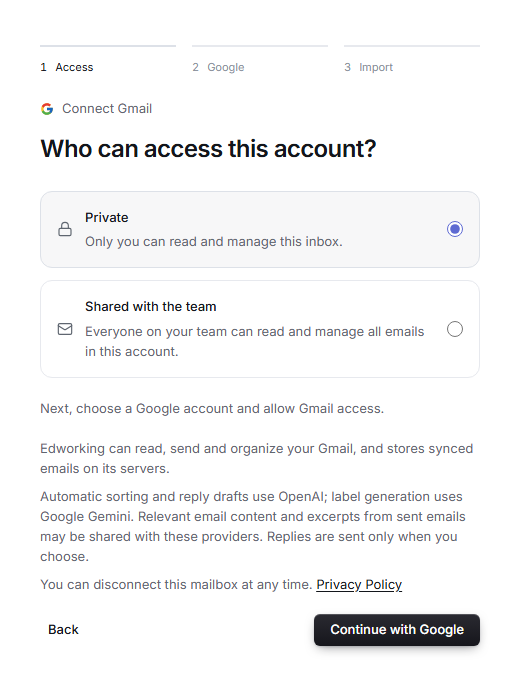
Email now has its own place in Edworking. Connect a Gmail account, read conversations with their original formatting, and reply or write a new email that is sent through Gmail. The first import brings in at least 100 conversations when your mailbox has them.
Before you sign in with Google, choose who can access the account. A private inbox is only for you. A shared inbox lets everyone on your team read and manage its emails, which suits addresses such as support or sales.
From a conversation you can create a task, schedule a meeting, invite the sender to Edworking or set a follow-up, and ask Brain for a brief or research in the AI bar. When writing, Fix grammar shows the original and the corrected text and only changes your draft when you accept it, and Snippets keep the replies you send often. Share with team lets teammates read a single conversation.
Edworking stores synced emails and uses AI providers for automatic sorting, reply drafts and labels. The connection screen explains what is shared, and you can disconnect a mailbox at any time.
Connect the inbox you use for client work first, then turn one email that needs action into a task. Explore tasks in Edworking
Catch up with mark all as read
Web · Improved
When a chat has unread thread replies, the Unread threads button lists them with who replied and whether you were mentioned. A new ✓ button next to the title marks all of those threads as read in one click. Unread messages in the main chat stay unread, so you don’t miss them.
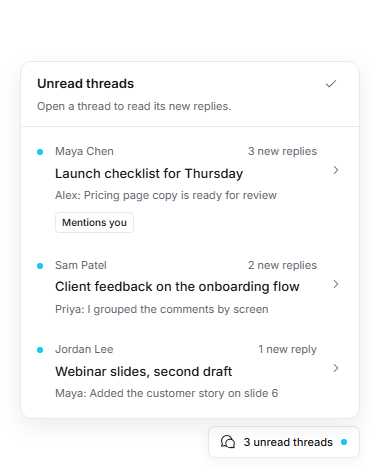
The notifications bell has the same ✓ button next to the unread count: it marks every notification in the current workspace as read. If marking fails, the unread items come back and you see an error.
After a few days away, open the bell, check what mentions you, then clear the rest with Mark all as read.
Celebrate in chat with effects
Web · New
The emoji picker in chat now has an Effects tab with Confetti, Hearts, Applause, Balloons, Fireworks, Stars, Laughter, Fire and Snow. Pick one and it is sent straight away, playing over the conversation.
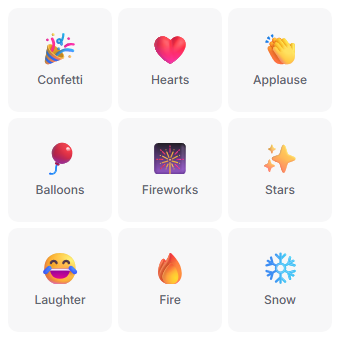
Effects are available in conversations between people, not in chats with AI or agents, and not while you are replying to a message. A message sent with an effect shows its name, so anyone can play it again.
Next time a teammate ships something, send them Applause.
More improvements
Web · Improvements and fixes
Other changes this week include:
- Space automations can now start from more than tasks: a message in the space’s chat, a new Doc, an added file, a submitted form or a new member. Send message to replaces Add comment and can post to the task’s chat, a space’s chat, a channel or people directly, and a new action creates a Doc. Admins also get New automation in the + menu.
- The Customer Support Agent is back in the Agents menu, with its five-step setup, knowledge sources, support inbox and conversation ratings. Creating one needs the Business plan.
- New passwords, when you sign up or reset yours, need at least 15 characters. Existing passwords keep working.
- Signing out now also clears data Edworking kept in your browser, such as cached content, local drafts and unsent messages, in every open tab.
- Chats can show a section, such as search, beside the conversation or in its place.
- Getting started now offers the Social Media Manager in its agents step.
- The startup screen shows your workspace’s name, with a different loader each week, before it opens your workspace.
Mobile fixes in testing
iOS and Android · Testing builds during this period
The mobile work in this period focuses on creating and organising tasks faster:
- Add tasks from an “Add task” row at the end of lists, boards and Home, and keep typing to add the next one.
- Speak a task: Brain listens, shows what it heard so you can correct it, then creates the task.
- Link related and blocking tasks, add subtasks inline, and remove covers from tasks and Docs.
- Create channels, and see photo and video messages at their size while they upload.
These changes reached TestFlight and Google Play internal-testing builds (version 3.0.23) on 3 November. They are not yet in the public app stores.
Try the updated workspace
Open Edworking to explore the web updates. If you are evaluating the platform, the interactive product demo introduces the workspace; individual new features may not yet appear in the demo.
For desktop and mobile installation options, visit Edworking downloads.