Download Mobile App


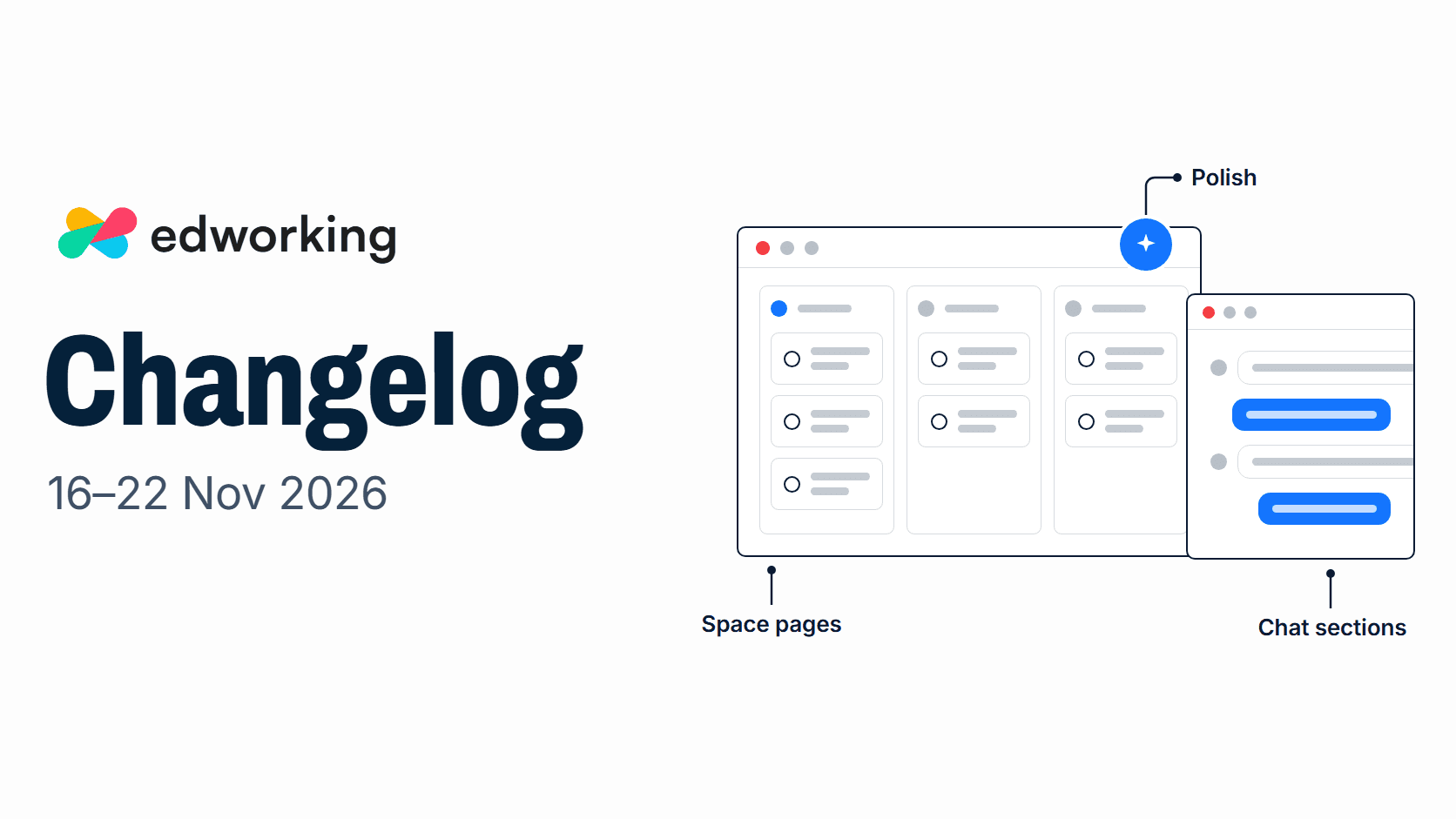
Spaces get a page of their own this week, alongside a Polish button for chat drafts and a chat sidebar you can arrange in sections. Here’s what changed on the web, with Calendar, Reports and the AI bar also getting more room to work.
Give every space a page of its own
Web · New
Home now works the same way for All Spaces and for each of your spaces. Open a space and its page starts with the space itself: its name, a short description that members write in place, and how its work stands, with open tasks, overdue tasks and tasks due in the next 7 days. From the header you can see members, invite people, open the space’s chat or pin something.
Pin a Doc, task or link from the pin button in the space header. Tasks, Docs and files can also be pinned from their own menus, and pins appear in the space’s Pinned widget.
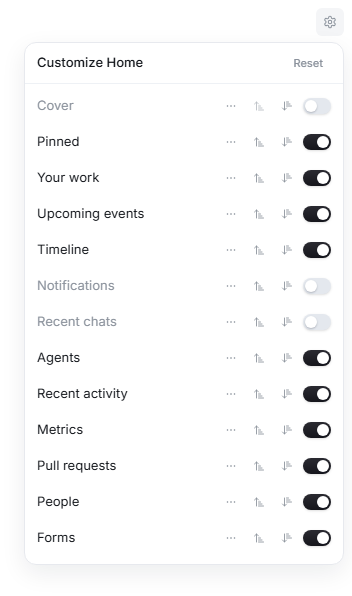
Use the settings button on Home to switch widgets on or off, move them up or down, or change a widget’s width. All Spaces and space pages each keep their own layout, saved for you. A space’s cover Doc starts switched off; turn on Cover to show it at the top. Timeline shows dated tasks two weeks around today, Pull requests appears for spaces linked to a GitHub repository, and Metrics is included with the Business plan.
When you create a space, you can add a description and choose Browse catalogue to start from one of 80 templates across 16 company types and 11 project types. A template sets up workflow states, lists with tasks, and Docs. Template content is in English for now.
Match your brand, in your appearance preferences, reads your company website and suggests colours for Edworking. On the Business plan, admins can apply it to the whole workspace; on other plans you can preview it for three minutes.
Open one of your spaces, write a one-line description of what it is for, and pin the Doc your team checks most often. Explore tasks in Edworking · Explore collaborative Docs
Polish a message before you send it
Web and desktop · New
A Polish button now sits beside Send in chat. It suggests clearer wording for your draft and fixes spelling and grammar, while keeping your meaning, names, numbers and links. It is also available when you answer customers in support conversations, including private notes and email replies.
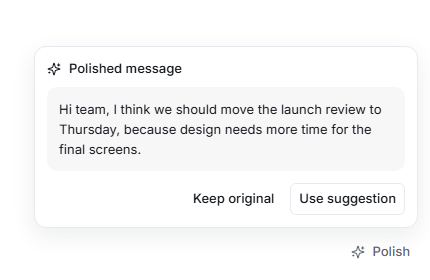
Use suggestion only updates your draft; formatting, mentions, links and code stay in place. Polish works on messages of up to 16,000 characters. If your workspace reaches its AI usage limit, Polish tells you and your draft stays as it is.
Try it on your next long update: write it quickly, press Polish, and compare the two versions before you send.

Arrange your chats in sections
Web · Improved
The chat sidebar now groups conversations into sections: Unreads, Favorites, Direct messages, Channels, Agents, Spaces, Tasks, Meetings and Email. Fold a section, sort it by Recent or Name, move it up or down, or hide it from its ⋯ menu. A folded section still shows its unread chats and the chat you have open.
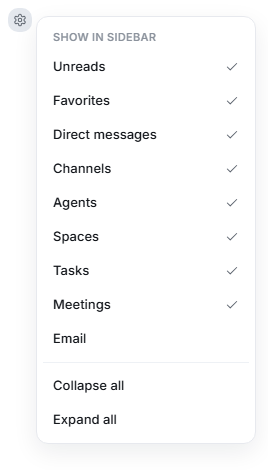
Add any chat to Favorites from its menu. If your workspace answers customers, the customers waiting for a reply start in Favorites, followed by a link to all customer conversations. Email starts hidden: tick it in Customize sections, beside the Chats title, to show it. Your sections, their order and your favorites are saved to your account, so they follow you to other devices.
Favorite the two or three chats you check every day, then fold the sections you rarely need.
More improvements
Web · Improvements and fixes
Other changes this week include:
- Calendar opens as its own page. The sidebar shows the month picker, the calendars you show, the day’s agenda, your booking link and New Task / New Event.
- Reports moves out of Settings into its own view, under More in the sidebar, with personal, space and meeting reports in one list you can filter by type or date. Reports is part of the Business plan.
- Choose where the AI bar sits: bottom left, centre or right. It now stays usable in front of open tasks and dialogs, and Talk to Brain moves from the top bar to a button beside it.
- Reminder emails and automatic personal and space reports are now opt-in. Choices you had already made are kept.
- Invite Members accepts several email addresses at once and tells you who joined straight away and who stays pending until they sign up.
- A task’s menu groups occasional actions under Add and More options, and the bars above boards, tasks and Docs keep their main controls, with the rest in the ⋯ menu.
- In a call, anyone in the meeting can turn on AI notes, answers and subtitles, while recording stays with workspace members. The recording notice and the waiting card now sit in a corner instead of covering the call.
- Public pages, such as forms, booking pages, personal pages, the support chat and shared Docs, files and boards, open in the visitor’s language.
- In the form builder, question types are named in your language, and Priority questions now get their choices.
- During the free Business trial, the sidebar shows when it ends with a link to the plans, and a plan chosen during the trial starts when the trial ends. Members can now buy a workspace’s first plan, and onboarding asks which currency to bill in.
- Photos and videos sent together appear as an album in chat, messages that fail to send stay in the conversation with Retry, and chat activity appears as compact one-line rows.
- A Customer Support Agent can file bugs and requests as tasks in a space, and support replies can include links, bold text and lists.
- A window opened just after an update loads the current version instead of waiting on the loader.
- The meeting agenda template gallery has moved to the website: browse meeting agenda templates.
Try the updated workspace
Open Edworking to explore the web updates. If you are evaluating the platform, the interactive product demo introduces the workspace; individual new features may not yet appear in the demo.
For desktop and mobile installation options, visit Edworking downloads.