Download Mobile App


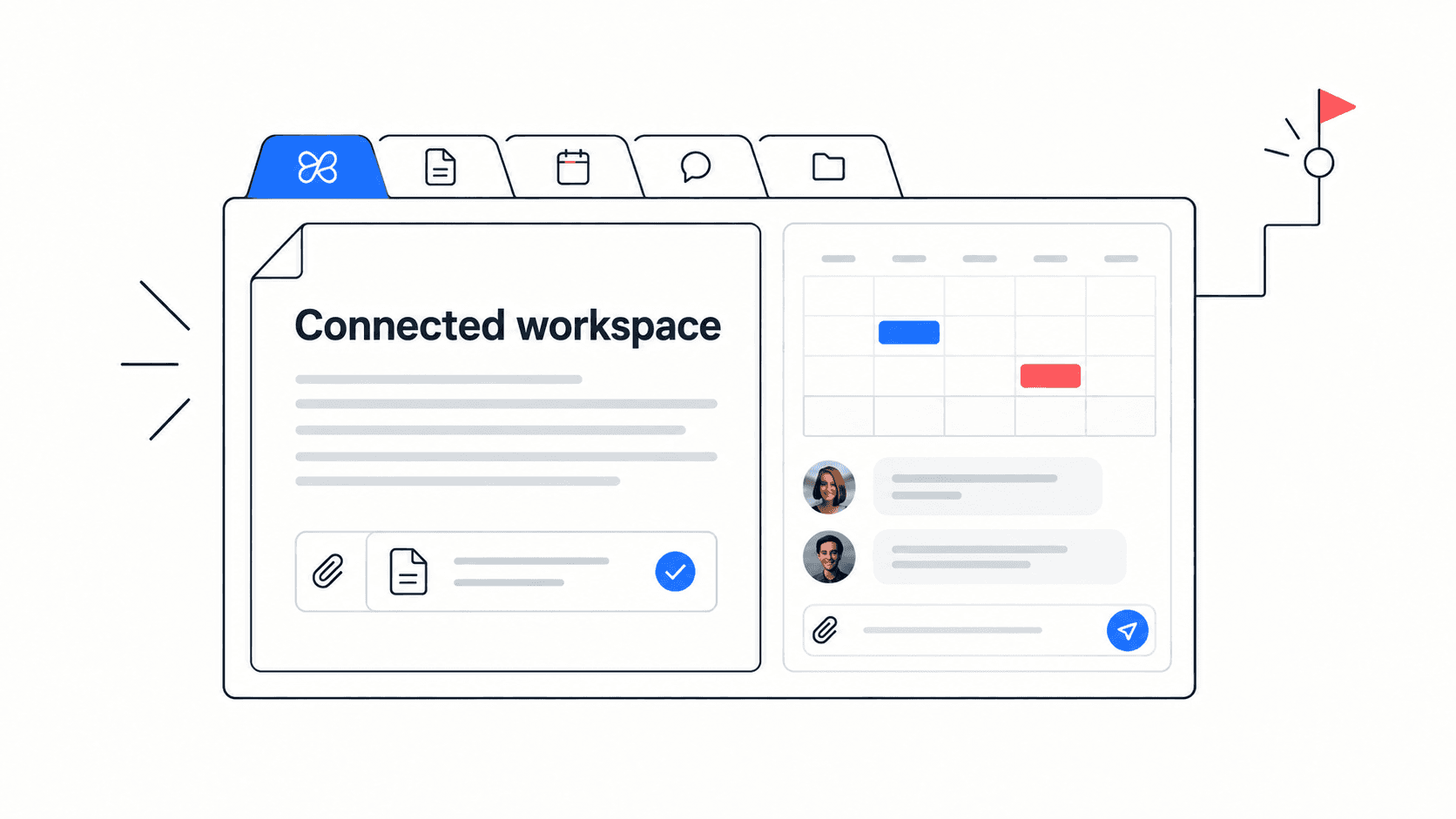
Google Workspace and Edworking overlap in collaboration, but a small team should compare them against specific jobs. Business email, spreadsheets and project follow-up are different requirements. You may keep Google Workspace for some of them while using Edworking for daily project coordination.
Google Workspace already connects several kinds of work
Google's product overview includes Gmail, Calendar, Drive, Docs, Sheets, Slides, Meet, Chat, Tasks and Gemini-related capabilities. It would be misleading to describe Workspace as documents and email without tasks, chat or AI.
The comparison is about how your team organises work within those capabilities. Start with the features included in your actual plan and the habits your team already follows.
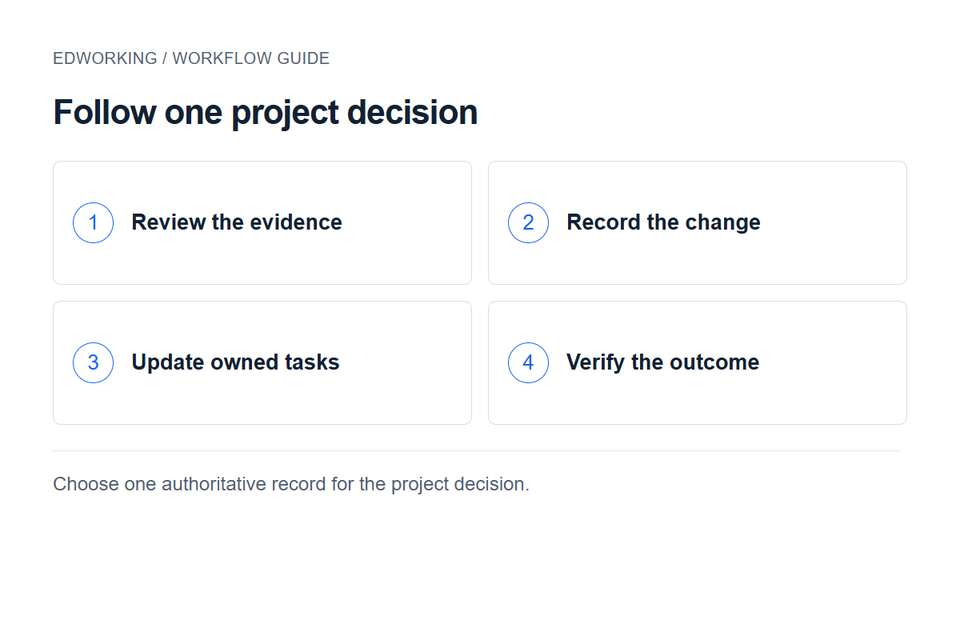
Separate the requirements
- Business communication: list email, calendar and external collaboration needs that must continue working.
- Documents and analysis: identify spreadsheet models, shared documents and presentation workflows that rely on existing formats or permissions.
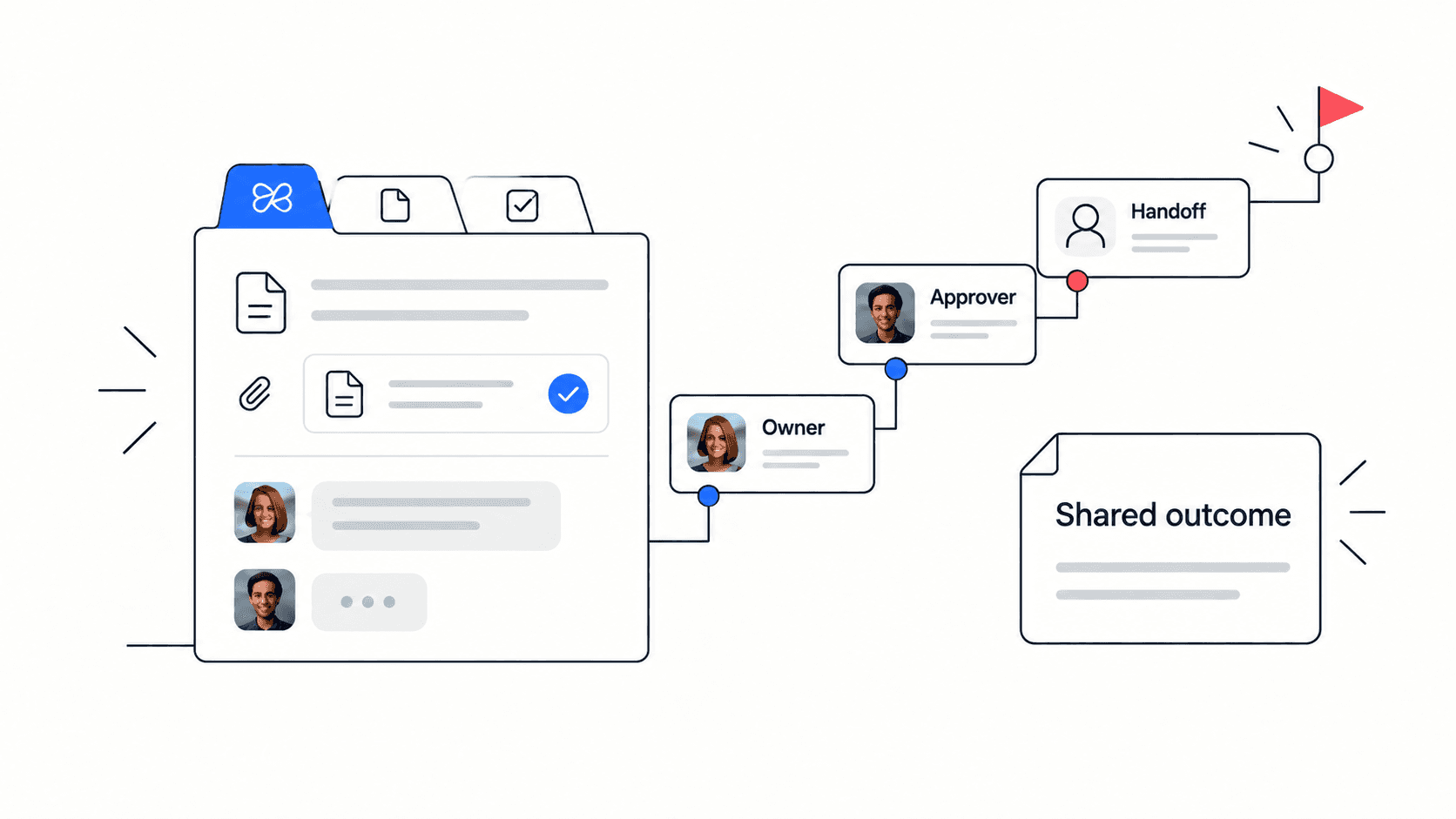
- Project execution: identify where ownership, deadlines, decisions and follow-up are currently recorded.
- Administration: check access, retention, export and any required account controls before changing a tool.
Do not treat Edworking as an assumed replacement for business email or a complex spreadsheet model. Evaluate its project workspace for the work you want to improve, then retain the other tools that still serve a clear purpose.
Example: follow a launch decision through the stack
A five-person team is launching a service. The launch plan is in a document, the capacity model is in a spreadsheet and a review call changes the target date. The practical challenge is making sure every owner knows which work changed.
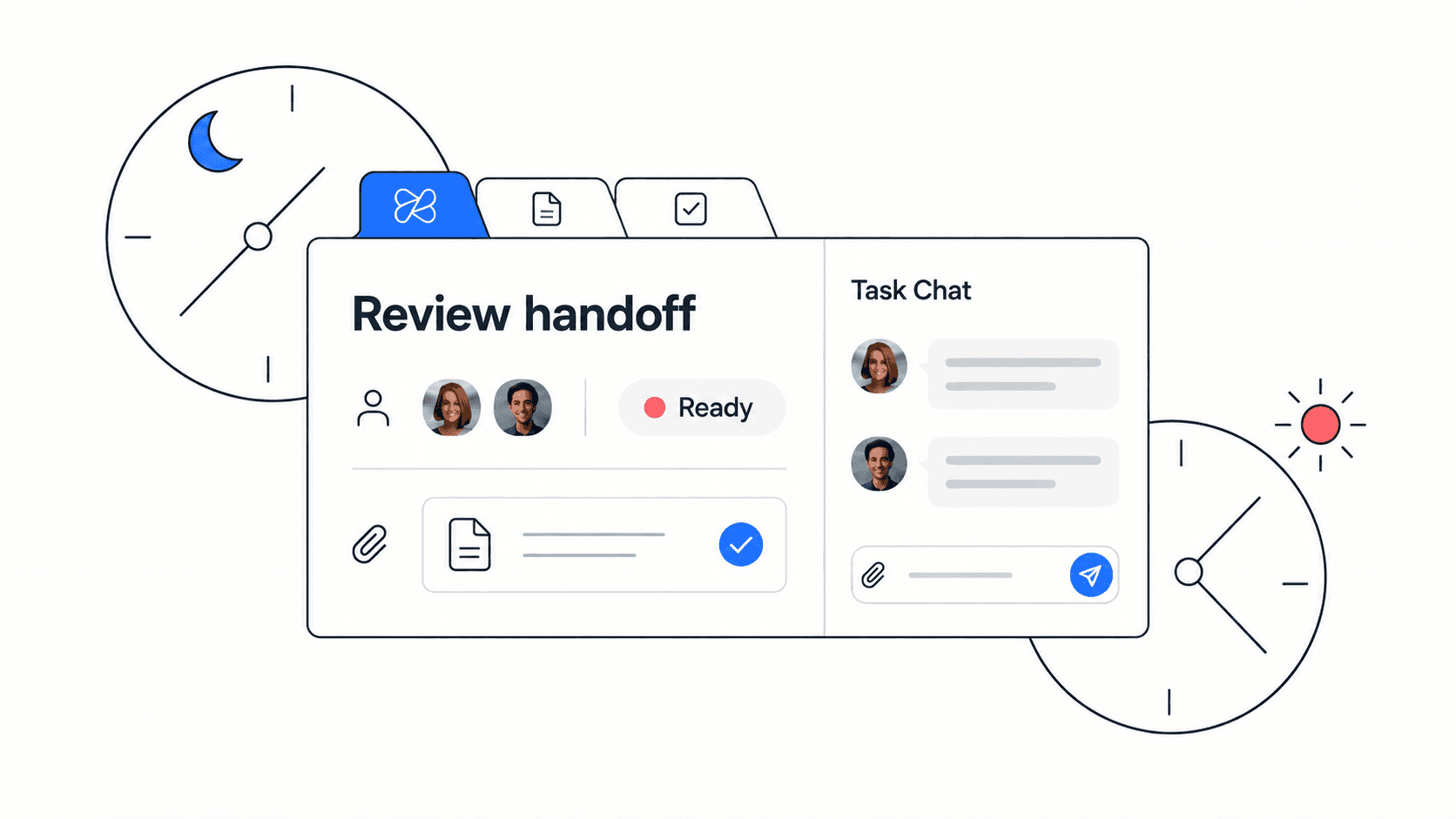
First test your current workflow. Update the decision in the plan, link the relevant tasks and ask a teammate to find the new deadline. If the answer is clear and the process is easy to maintain, there may be no reason to move it.
If the team repeatedly misses those updates, pilot Edworking for the launch brief, tasks and conversations. Keep the spreadsheet where it works best and link it from the brief. Name one person to maintain the launch decision so the team does not end up with two different dates.
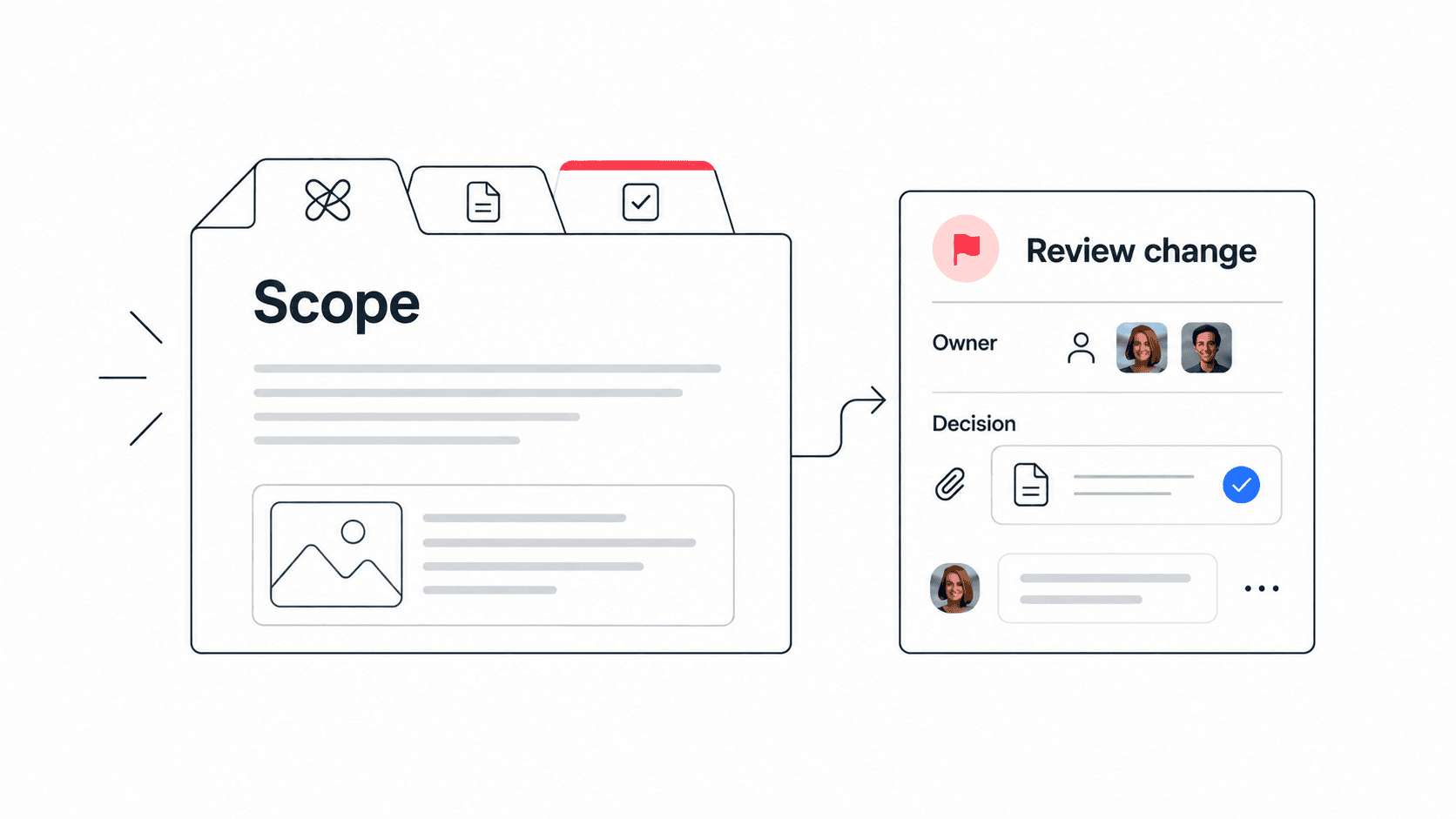
Use the meeting notes template to separate discussion from agreed action. For a change affecting scope or timing, keep a decision log linked to the affected tasks.

Compare the same workflow in both setups
Choose one project cycle and define success before starting. Record how long it takes participants to find the current brief, identify an owner and locate the final decision. Note access problems and the effort spent copying updates.
Avoid comparing a carefully organised new workspace with a neglected old one. Give the existing setup a clear owner and consistent links too. This helps distinguish a better working habit from a genuine benefit of changing software.
The Edworking demo is a starting point for exploring tasks, documents and conversations. A trial with real participants is needed to check whether the organisation suits your team.
Calculate the cost of the decision
List the subscriptions that would actually be cancelled, the ones that must remain, and the time required to move active work. Include a period when both systems may be available. Do not count an entire productivity suite as a saving if you still need its email or spreadsheet capabilities.
Check current feature entitlements directly before purchasing. AI, storage, administration and external participation requirements can affect the plan you need.
Choose a clear home for each record
Keep Google Workspace when its existing workflow meets your needs. Add or move project coordination to Edworking when a trial demonstrates clearer ownership and follow-through. If you use both, document where the authoritative project status lives and link supporting material from it.
The best outcome is one reliable route from a decision to an owned action. It does not require every business activity to live in a single application.