Download Mobile App


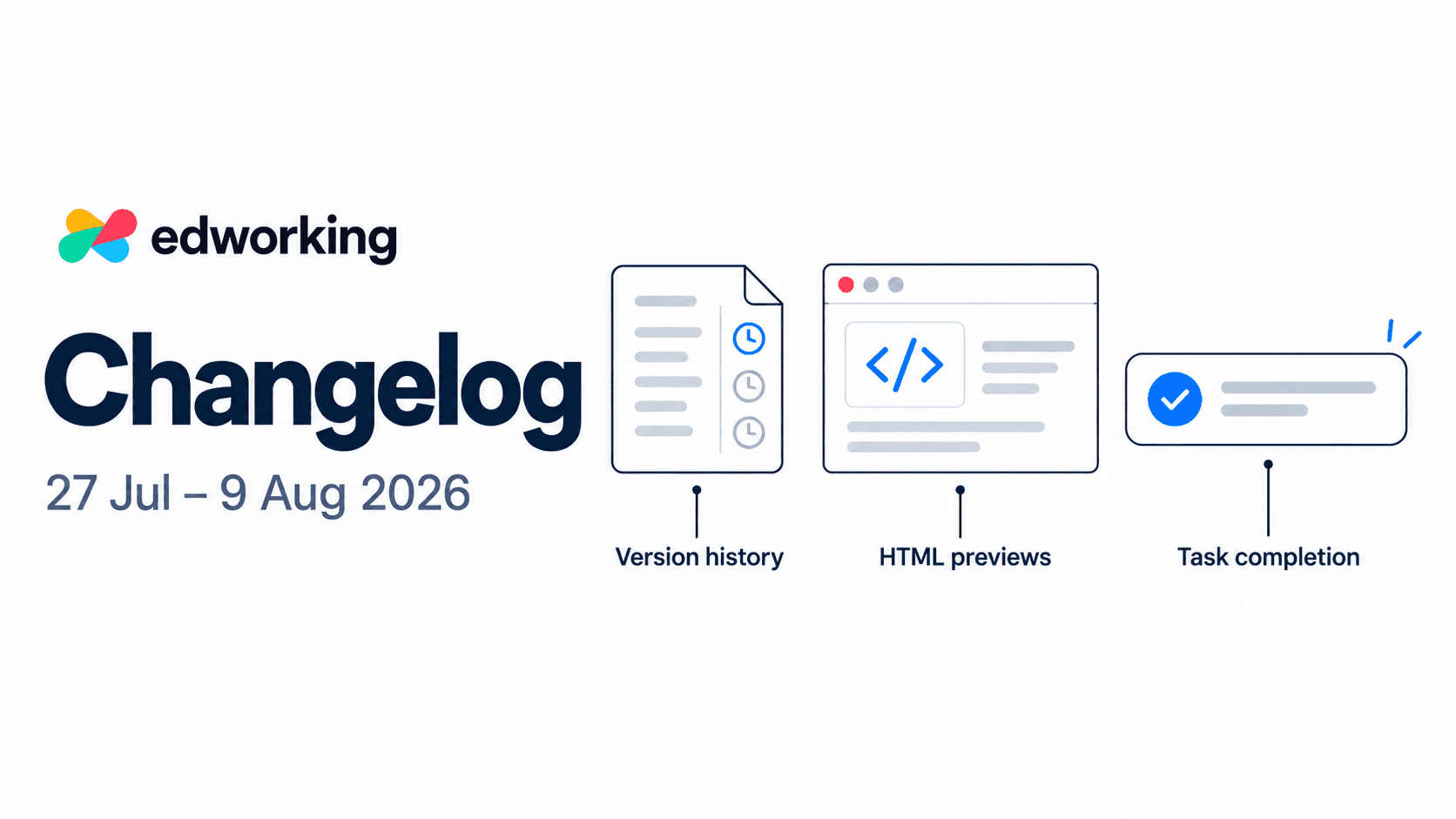
This fortnight’s updates help you revisit earlier work, review HTML files inside Edworking and recognise when a task is complete. Version history leads the release, alongside smaller improvements to task resources and completion controls.
Screenshots show the current web interface. Some visual details have evolved since this edition’s reporting period.
Revisit earlier versions of your work
Web · New · Business plan
A project brief often changes as ideas become clearer. Version history gives you a way to revisit earlier content instead of relying on separate copies of a document.
Open the history control in a document or task to browse saved versions of its editor content. Choose a version to preview it, then use Restore this version if you want to bring that content back into the editor.
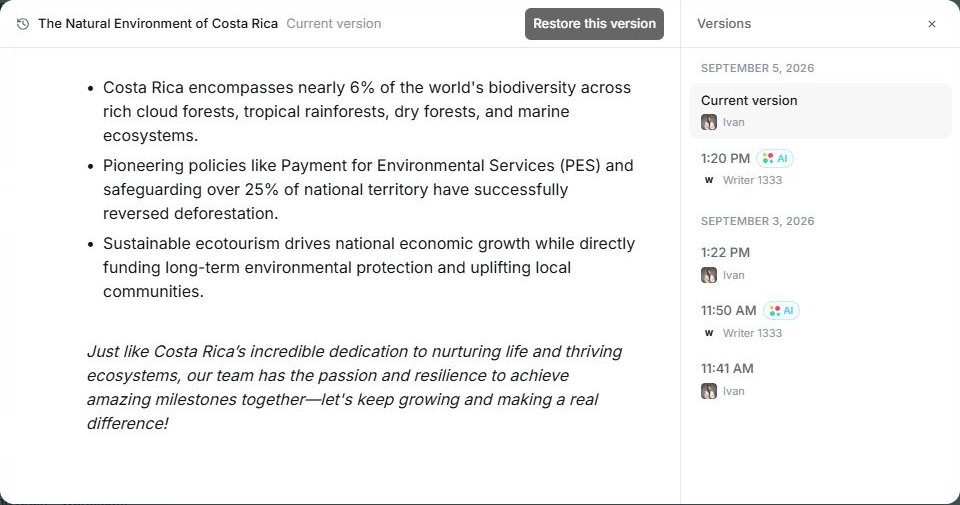
Versions are captured automatically around editing sessions, and the history distinguishes AI edits from other changes. This is a history of document content and task descriptions—not a complete audit log of every task field or conversation.
Version history is available on the Business plan. A document needs saved versions before there is earlier content to browse.
Try it: open a document your team has revised, select the history icon and preview an earlier version. Review the content before restoring it, especially when teammates are collaborating on the same document.
Preview HTML files inside Edworking
Web · New HTML file view
HTML files can now render in the file viewer. Open a supported HTML attachment to review its page content within Edworking, alongside the work it belongs to.
This is useful when a teammate shares a self-contained HTML mockup or report. You can inspect the rendered result instead of treating it as an unrecognised file. HTML files also receive a dedicated file icon, and supported shared-file views can display the preview.
The preview displays the uploaded file; it does not turn that file into a published website. Files that depend on external resources or a separate application environment may render differently.
Try it: open an HTML file in Files and check the rendered layout. For a portable example, use a self-contained HTML export with its styling included.

Keep task resources relevant
Web · Improved task links
Task resource links now have a Remove action in their menu. If a linked reference is obsolete or attached to the wrong task, you can remove that association from the task.
This action unlinks the resource. It does not delete the external page or repository item the link points to.
Try it: review the resources attached to an active task. Keep the current brief and relevant references easy to find, and remove links that no longer belong.
Get clearer feedback when a task is complete
Web · Improved task completion
Completing work gets a small visual celebration and a chime when browser audio is available. Completion feedback follows the transition into the finishing state, including supported completion controls on task cards, task menus and the state selector.
The checkbox interaction also gets a clearer mark and an improved click area. Together, these changes make a frequent action easier to recognise.
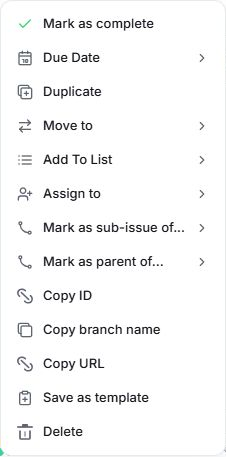
The celebration is tied to a task becoming complete. Editing a task that is already finished or reopening it does not trigger the same completion feedback.
Try it: when a real task is ready, use Mark as complete from its menu or the completion control on its card. Confirm that it moves into your board’s finishing state.
Explore task management in Edworking
Put the updates to work
A useful first step is to review one document’s version history, inspect an HTML handoff or tidy the links on an active task. Each update is designed to make the work already in your workspace easier to manage.
Open Edworking to try the updates. If you are exploring the platform, take the interactive demo to see tasks, documents and conversations together. Individual recent features may not yet appear in the demo.
Next in the series: the 10–23 August 2026 changelog, covering two-step verification, member roles, contextual AI and ClickUp import.