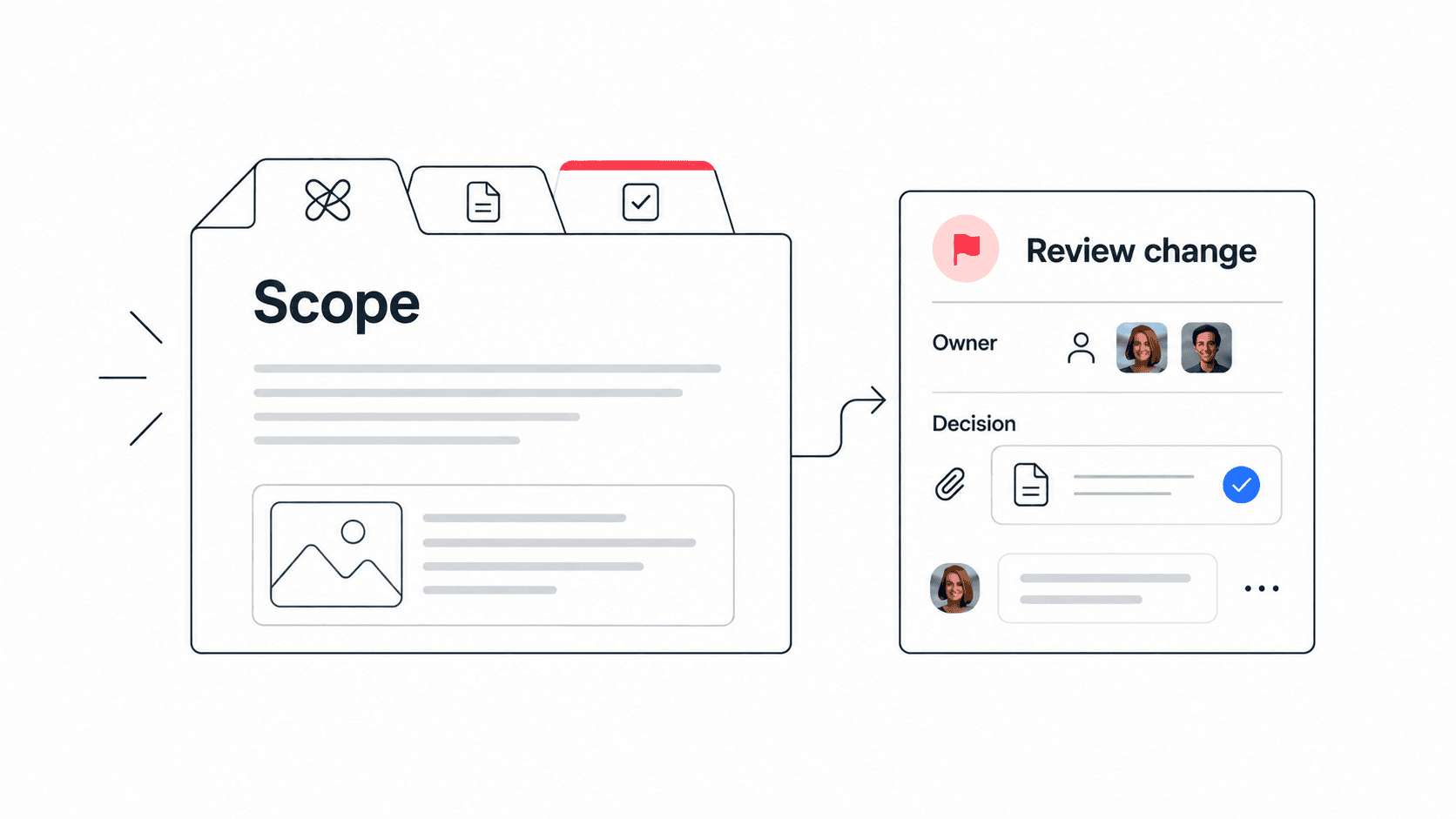
Smartsheet is useful when a team needs familiar spreadsheet-style project tracking, structured grids, and reporting views. It can be a strong fit for project offices, operations teams, and managers who think in rows, owners, dates, dependencies, and status columns.
The challenge starts when project tracking is only one part of the work. Small teams also need conversations, meeting follow-up, shared documents, files, decisions, and quick AI help. When those pieces live in separate apps, the project sheet may show status, but it does not always explain the context behind the work.
Quick takeaway: A good Smartsheet alternative for small teams is not just another project tracker. It is a workspace that keeps tasks, docs, files, chat, meetings, and AI close enough that work can move without constant copy-paste.

When Smartsheet is still the right fit
Smartsheet is often the right fit when your project process depends on grid views, formal reporting, portfolio rollups, and a high level of structure. If a team already has clear communication habits in another tool and mostly needs a system of record for dates, owners, and status, Smartsheet can remain valuable.
It is also helpful when stakeholders expect spreadsheet-like reports. Many managers are comfortable scanning rows and columns, filtering by owner, and exporting updates for leadership. In that situation, the tool is solving a reporting problem as much as a collaboration problem.
- Spreadsheet-style tracking is the source of truth for managers and stakeholders.
- The team needs structured fields, views, automations, and reports more than daily communication.
- Project updates are formal, periodic, and tied to portfolio or operations reviews.
- The team already has strong habits for chat, docs, meetings, and file sharing in other tools.
Decision rule: Keep Smartsheet when the main problem is structured project control and reporting, not fragmented day-to-day collaboration.
Signs your team needs a Smartsheet alternative
The need for a Smartsheet alternative usually appears when the sheet is accurate but the work around it is scattered. People update rows, then ask questions in chat, discuss decisions in meetings, attach files somewhere else, and create documents in a separate workspace. The project status may be visible, but the reasoning behind the status is harder to find.
A small team feels this quickly because every handoff depends on context. If a designer, founder, project lead, or client has to open three tools to understand a task, the workflow is heavier than it looks. The issue is not Smartsheet itself. The issue is that the spreadsheet is trying to represent work that is happening elsewhere.
- Rows show ownership, but discussions about the work happen in a separate chat app.
- Meeting decisions have to be manually copied into tasks or comments.
- Files are stored in folders without clear links to the task or decision they support.
- Stakeholders can see status but cannot easily see the latest context.
- AI summaries, writing help, or workspace search happen outside the project system.
What to look for in a Smartsheet alternative
The best alternative depends on what your team is trying to reduce. If the pain is spreadsheet complexity, choose a simpler task manager. If the pain is missing context, choose a connected workspace. For many startups and small teams, the second problem is more important because speed depends on fewer handoffs.
A good alternative should still make ownership and deadlines clear. But it should also make conversations, documents, files, and meetings part of the same working context. That is the difference between tracking work and helping people finish it.
- Task ownership with clear due dates, priorities, and follow-up.
- Collaborative documents for briefs, plans, decisions, and meeting notes.
- Team chat connected to tasks, spaces, files, and project context.
- Video calls or meeting flows that make it easy to capture next steps.
- AI search or assistance that can find context across the workspace.
- Simple pricing and onboarding for small teams that do not want a heavy admin layer.
Edworking tip: If your team keeps rebuilding context before every task, the replacement should connect the workspace, not only recreate a project grid.

Smartsheet vs Edworking: practical comparison
Smartsheet and Edworking solve different collaboration problems. Smartsheet is strongest when teams need a structured, spreadsheet-like layer for planning, tracking, reporting, and process control. Edworking is strongest when teams want daily execution and communication in one place.
That distinction matters because many teams do not fail because they lack another view. They fail because the view is disconnected from the conversation, the file, the decision, or the next task. Edworking brings those pieces into the workspace so small teams can keep moving without rebuilding context.
- Project tracking: Smartsheet emphasizes grids and reports; Edworking emphasizes tasks, spaces, lists, boards, and connected work.
- Documents: Smartsheet can store notes and attachments; Edworking includes collaborative docs with AI writing support.
- Communication: Smartsheet comments are useful for row context; Edworking adds team chat and task conversations.
- Meetings: Smartsheet normally needs an external meeting app; Edworking includes video calls inside the workspace.
- AI: Smartsheet has automation and AI-oriented features; Edworking focuses on AI help inside the workspace, including writing, search, and knowledge context.
Example workflow: replacing a project status sheet
Imagine a startup operations team running a product launch. In Smartsheet, the launch plan may include rows for landing page copy, design review, customer email, launch checklist, and support readiness. That gives the team a useful tracker, but the work itself still creates many side conversations.
In Edworking, the team can create the launch workspace, turn each launch stream into tasks, write the launch brief in docs, attach final assets, keep questions in chat, run quick video calls, and use AI to find previous decisions. The status is not separate from the work. It is part of the same operating system.
- Create a launch space with workstreams for marketing, product, sales, and support.
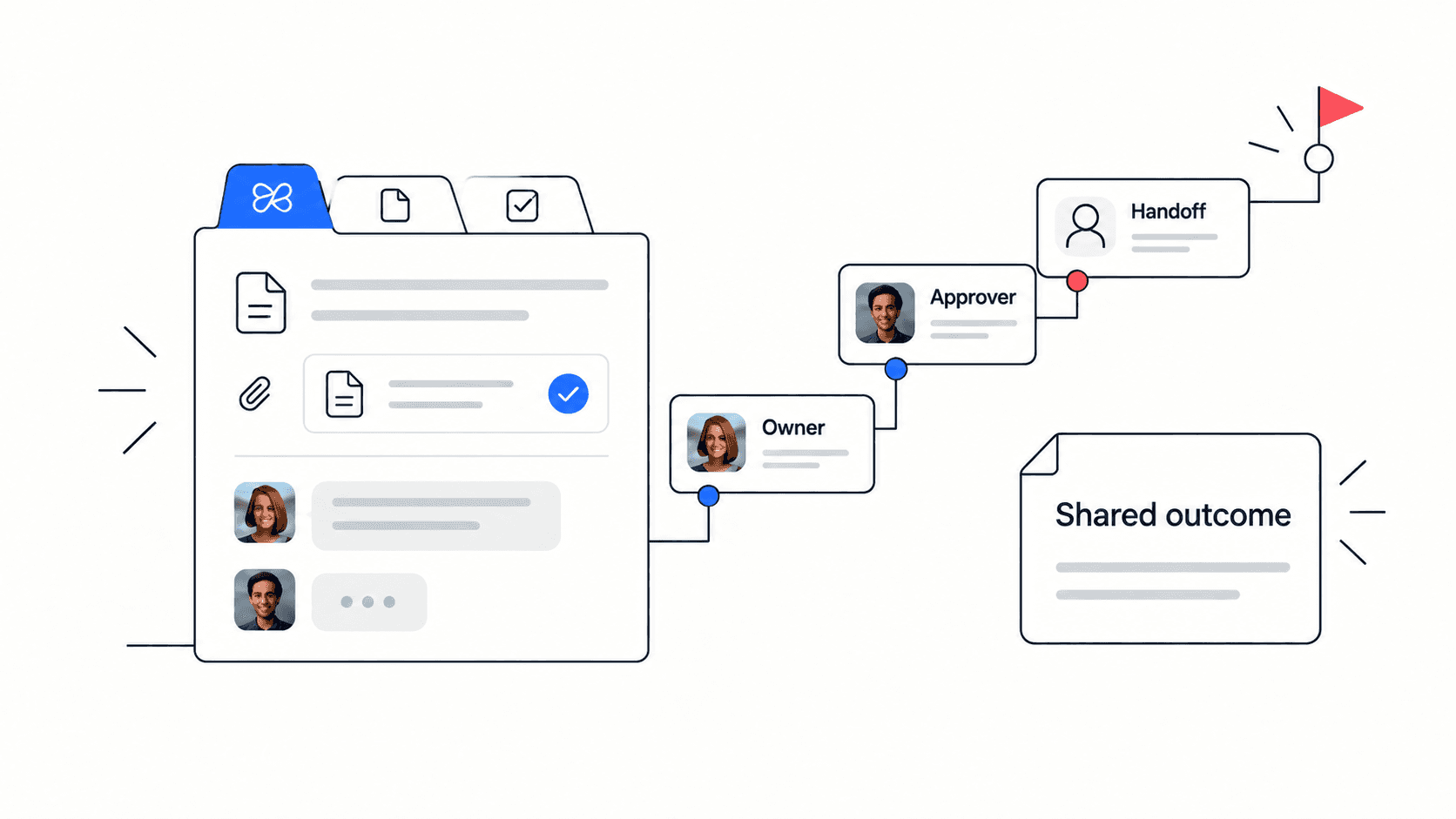
- Add tasks with owners, due dates, blockers, and linked docs.
- Keep the launch brief, decision log, and customer messaging in collaborative docs.
- Attach files directly to the tasks and docs where they are used.
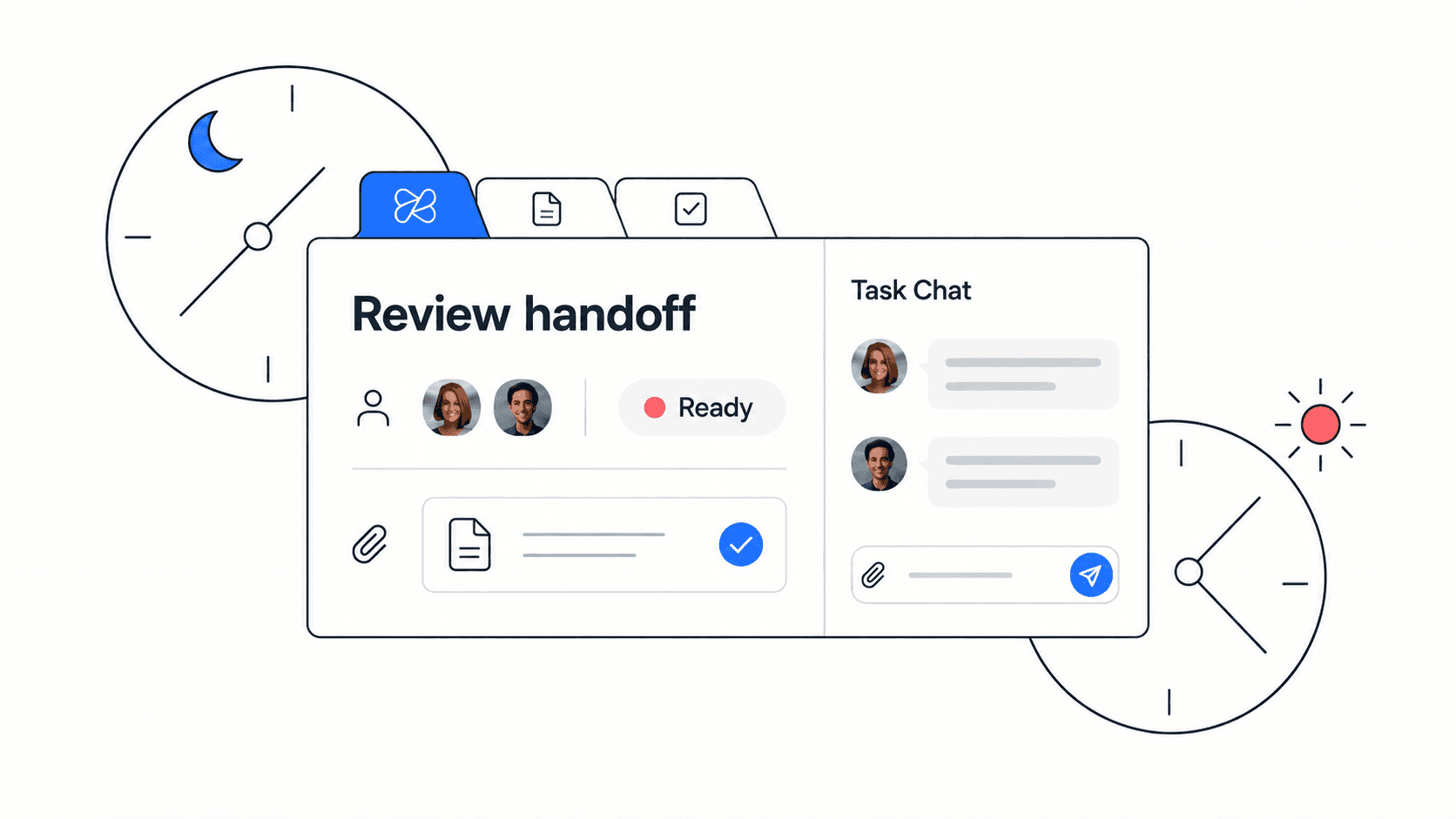
- Use chat and calls for decisions, then turn follow-up into visible tasks.
Example: A founder asking "are we ready to launch?" should be able to see tasks, decisions, files, and open questions without chasing updates through multiple tools.
Migration checklist for small teams
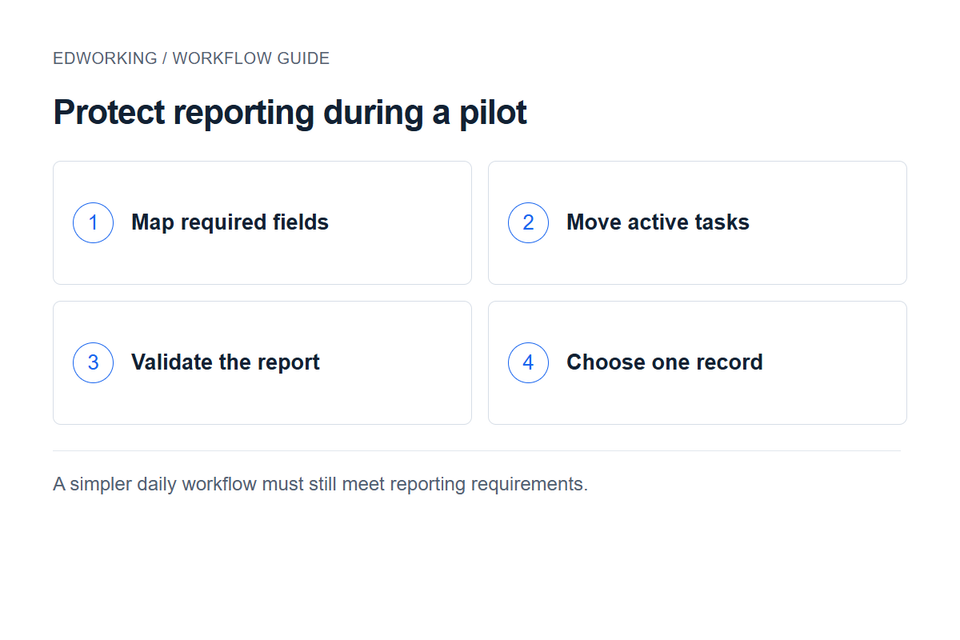
Moving away from Smartsheet does not need to be dramatic. Start by identifying which parts of the sheet are true project controls and which parts are only trying to compensate for missing collaboration. The first group may need careful migration. The second group can often become simpler once the workspace is connected.
- List the top three sheets your team actively uses each week.
- Mark which columns represent tasks, owners, status, files, decisions, blockers, or reporting fields.
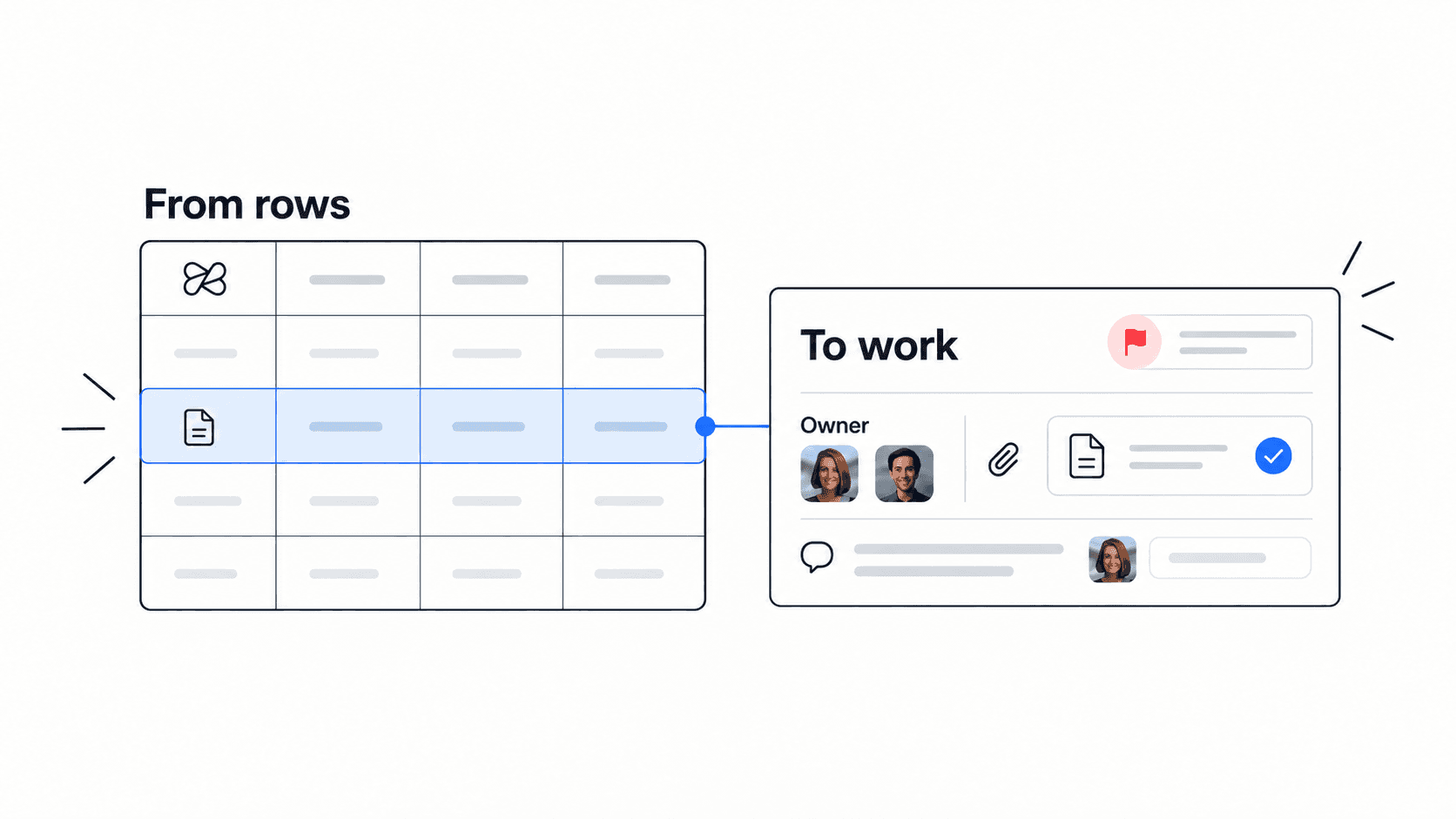
- Move task-like rows into a workspace where owners and follow-up are visible.
- Move project briefs, meeting notes, and decisions into collaborative docs.
- Connect files to the task or document where they matter.
- Keep any high-value reporting process until the team has a replacement view.
- Review the new workflow after two weeks and remove duplicate update habits.
Common mistakes when choosing an alternative
The biggest mistake is replacing one complex tracking system with another tool that still leaves communication somewhere else. If the team already struggles with context switching, another project view will not fix the operating model.
The second mistake is ignoring the people who update the system every day. A manager may love detailed reporting, but the people doing the work need a practical place to ask questions, share files, write notes, and close tasks. A good workspace has to serve both groups.
- Choosing a tool only because it has more views than Smartsheet.
- Migrating every column before asking which fields are still useful.
- Keeping chat, files, calls, and docs disconnected after the migration.
- Forgetting to create a clear internal-link path between project docs and execution tasks.
Mistake to avoid: Do not move work into a new platform until you know which Smartsheet habits are valuable and which ones exist only because context was missing.
FAQs
Is Edworking a Smartsheet alternative? Yes. Edworking can be a Smartsheet alternative for teams that need tasks, docs, chat, files, video calls, and AI in one workspace rather than spreadsheet-style project tracking alone.
When should a team keep Smartsheet? Keep Smartsheet when spreadsheet-style controls, portfolio reporting, and structured processes are the main value. It can remain useful for formal reporting even if daily collaboration moves elsewhere.
Can Edworking replace several tools at once? For many small teams, yes. Edworking can reduce separate task, docs, chat, meeting, file-sharing, and AI workflows by keeping them in one workspace.
What should we migrate first? Start with one active project where the team already has tasks, documents, files, and conversations scattered across tools. A real workflow reveals the gaps faster than a theoretical migration plan.
Cost and tool consolidation questions
Cost is rarely just the subscription price. A team may pay for Smartsheet, then add Slack for urgent conversations, Zoom or Google Meet for calls, Google Drive or Dropbox for files, Notion or Google Docs for knowledge, and a separate AI assistant for summaries. The combined stack can be more expensive than expected, but the larger cost is operational drag.
When comparing Smartsheet alternatives, list every tool that supports the project workflow. Then ask which tools are required because they add unique value and which tools exist only because the project tracker does not include enough context. This gives a more honest view of total cost and switching effort.
- Subscription cost: include every project, chat, document, file, meeting, and AI tool used by the team.
- Admin cost: count the time spent maintaining permissions, templates, fields, and duplicate workflows.
- Context cost: notice how often people ask for the latest file, decision, owner, or next step.
- Migration cost: avoid moving every legacy field if the new workspace makes that field unnecessary.
Decision rule: If most of the cost comes from duplicated tools and missing context, consolidation may create more value than another advanced reporting feature.
Who should choose Edworking instead
Edworking is a strong Smartsheet alternative for teams that want work to feel connected from the start. It is especially useful for startups, agencies, remote teams, and small departments where the same people plan work, discuss blockers, write documents, share files, and jump into calls.
The fit is strongest when a project tracker has become a map to work that happens elsewhere. Edworking gives the team a practical place to do the work: tasks for ownership, docs for knowledge, chat for context, video calls for decisions, files beside the relevant work, and AI support across the workspace.
- Choose Edworking when task follow-up is as important as reporting.
- Choose Edworking when docs and decisions need to stay close to execution.
- Choose Edworking when chat and meetings should connect to projects instead of floating separately.
- Choose Edworking when AI should help with workspace context, not only isolated text generation.
Who should keep Smartsheet longer
Smartsheet may remain the better fit when the organization has mature reporting workflows, complex portfolio dashboards, or automations built around spreadsheet-style data. In that case, replacing Smartsheet too quickly can create risk, especially if leadership relies on the existing reports.
A practical compromise is to keep Smartsheet for the specific reporting layer while moving daily collaboration into a connected workspace. Over time, the team can decide whether the reporting layer is still needed or whether simpler task and workspace views provide enough visibility.
- Keep Smartsheet when leadership reporting depends on existing dashboards.
- Keep Smartsheet when complex automations are already reliable and business critical.
- Keep Smartsheet when the team mainly needs a structured database rather than a collaboration workspace.
- Use Edworking beside it when daily work needs docs, chat, files, calls, tasks, and AI context together.
Final recommendation
Choose Smartsheet when structured grids, portfolio reporting, and spreadsheet-like project controls are the main job. Choose Edworking when your team needs one place to manage tasks, write docs, share files, chat, meet, and use AI with project context.
For small teams, the practical question is simple: does your current system help people finish work, or does it only record that work exists? If the answer is mostly recording, a connected workspace like Edworking is worth testing.