Download Mobile App


Team workload management gets messy when work is spread across task lists, chats, spreadsheets, meeting notes, and private reminders. A manager may think the sprint looks balanced, while one designer is stuck waiting for feedback, one developer owns three urgent fixes, and a founder keeps assigning “quick” requests that never appear in the plan.
This guide gives small teams a practical workload management rhythm they can use without adding a heavy PMO process. You will learn how to make work visible, read overload signals, rebalance tasks, and keep the decisions connected to docs, chat, meetings, and AI support.
Quick takeaway: team workload management is not just assigning fewer tasks to busy people. It is a weekly operating habit that makes ownership visible, protects focus, and turns workload conversations into clear next actions.
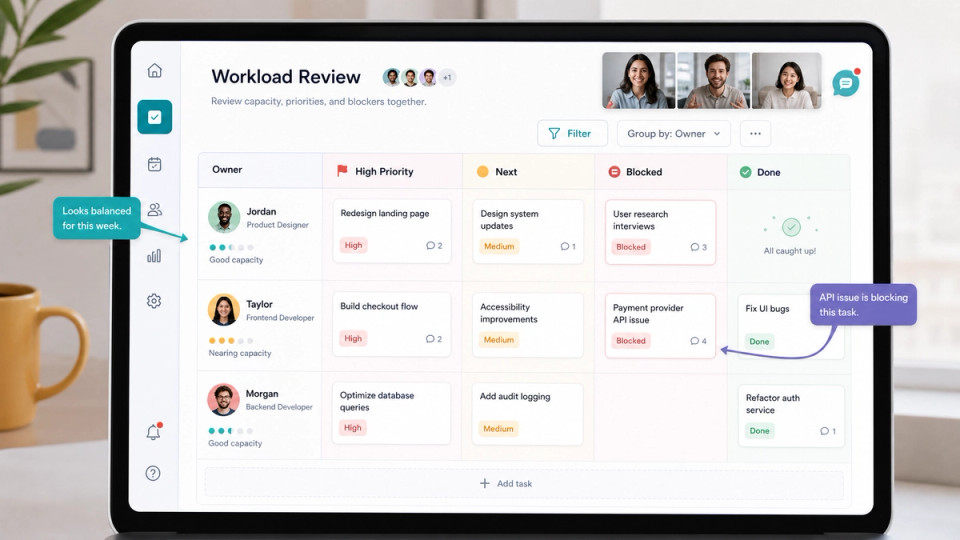
What team workload management means for small teams
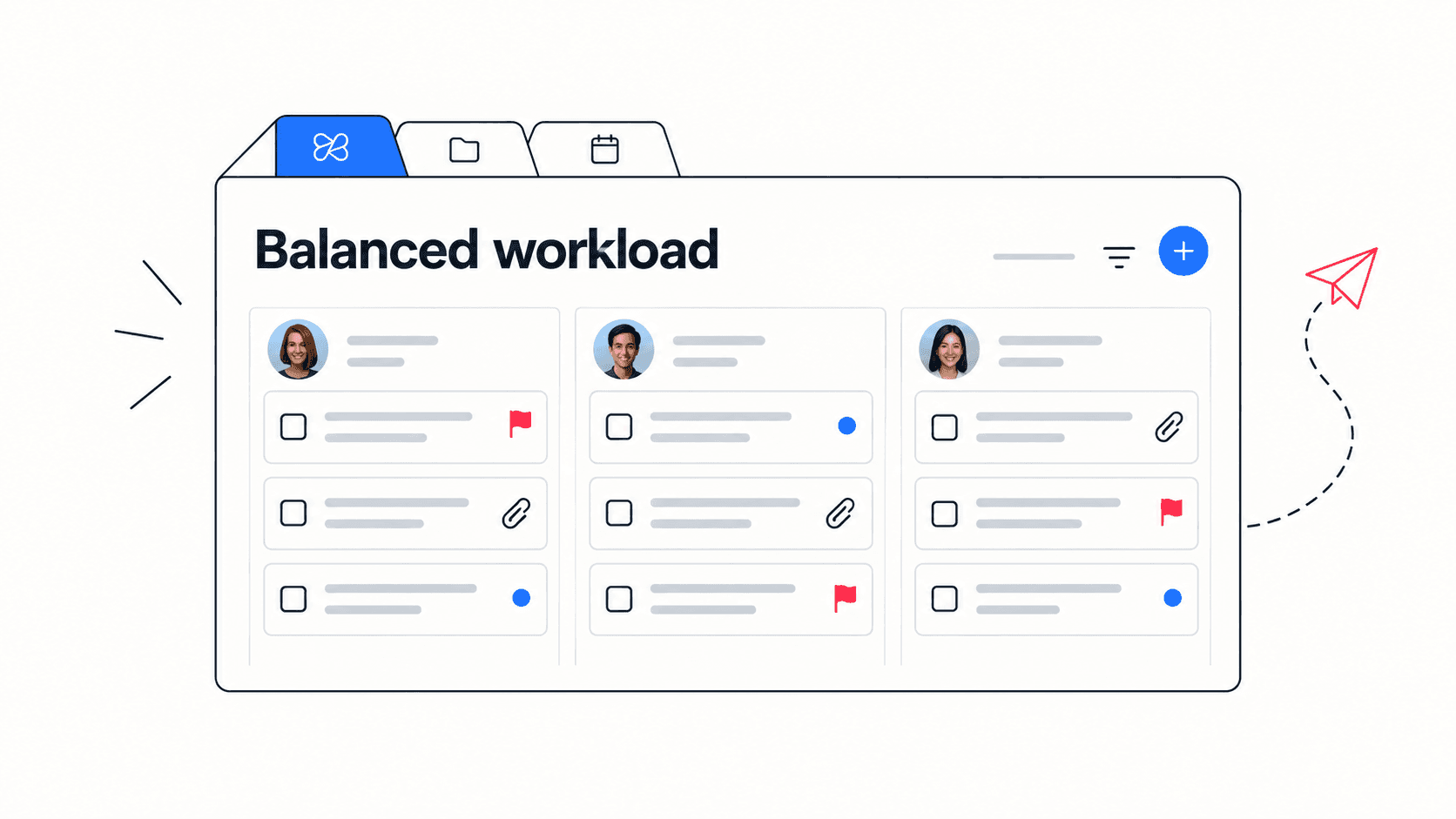
Team workload management is the practice of seeing who owns what, how much pressure each person carries, where work is blocked, and which commitments should move before they damage delivery. It combines task visibility with judgment about focus, skill fit, urgency, and team energy.
For small teams, the goal is not perfect utilization. Perfect utilization often means nobody has room for customer surprises, bugs, hiring work, or deep thinking. A healthier goal is to keep the most important work moving while making overload visible early.
- Workload visibility: every meaningful piece of work has an owner, status, priority, and due date.
- Capacity awareness: the team can see when one person has too many active commitments.
- Blocker handling: stalled tasks are reviewed before they become hidden delays.
- Rebalancing rhythm: work moves based on priority and available capacity, not whoever speaks loudest.
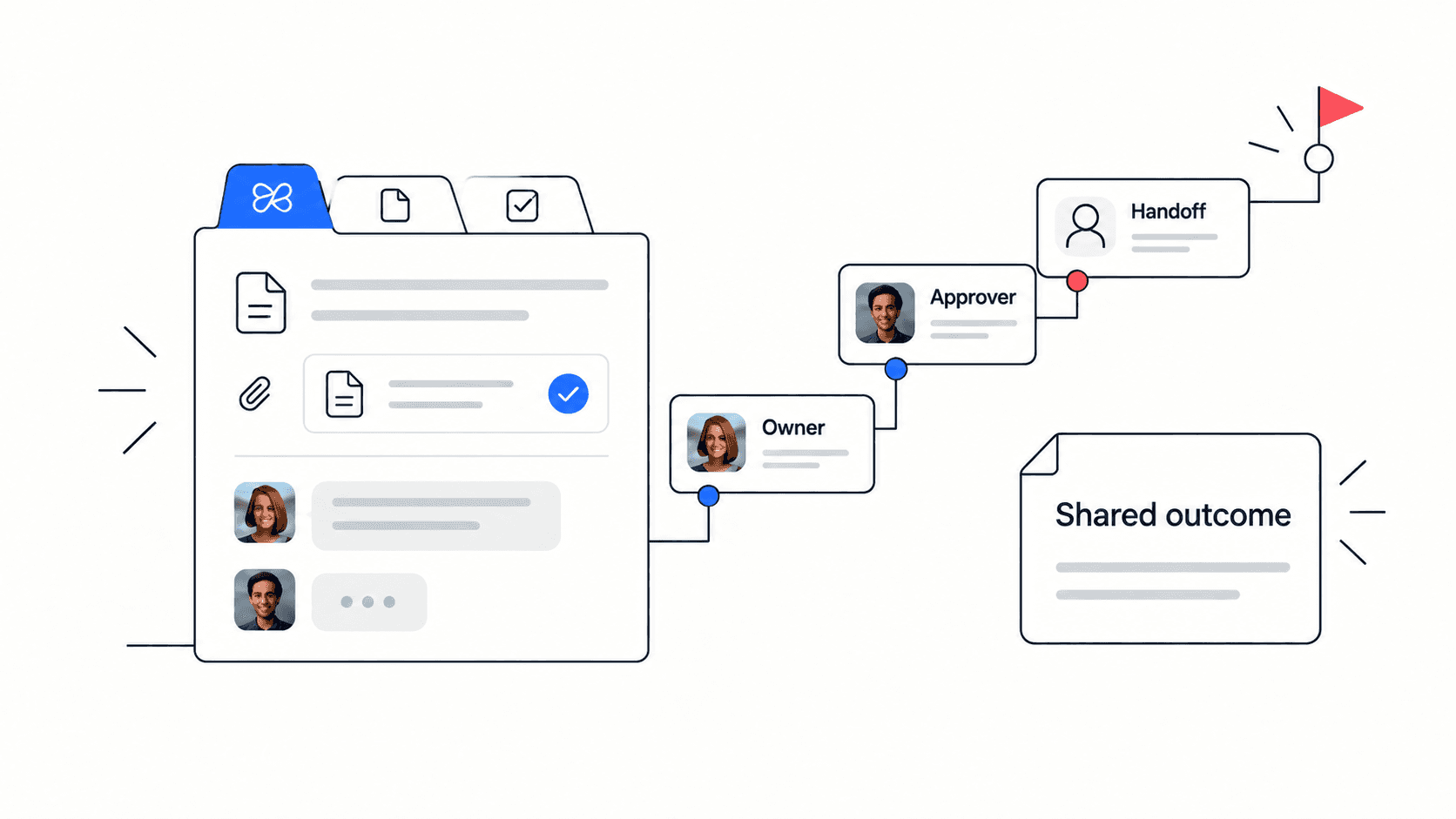
This matters especially in small companies because the same person may be responsible for delivery, customer support, hiring, and planning. If that mixed workload is invisible, the team may keep adding tasks to the person who is already protecting the most dependencies.
Edworking tip: keep tasks, docs, files, chat, and meeting notes in the same workspace so a workload review does not become a hunt across five tools.
The workload signals that matter most
A workload review should focus on signals the team can act on. Counting tasks alone is misleading because one task may take ten minutes while another needs three days of design, review, and coordination.
A better approach is to combine task count with urgency, dependency, blocked time, meeting load, and context switching. That gives managers and teammates a more honest picture of pressure.
- Too many active tasks: a person owns several items that all need progress this week.
- Aging blocked work: tasks are waiting for feedback, access, decisions, or files.
- Priority conflict: urgent work is mixed with strategic work and nobody knows what should move first.
- Meeting pressure: the person with the most work also has the least focus time.
- Invisible support work: reviews, onboarding help, customer calls, and internal questions are not represented in the task board.
Ask teammates to explain pressure in plain language, not just through labels. “I can finish this if design feedback arrives by Tuesday” is more useful than “busy,” because it names the condition that changes the workload decision.
Workload signal table for weekly reviews
- Signal: more than three active priority tasks. What it means: focus is likely split. What to do: pick one must-finish task and move or pause the rest.
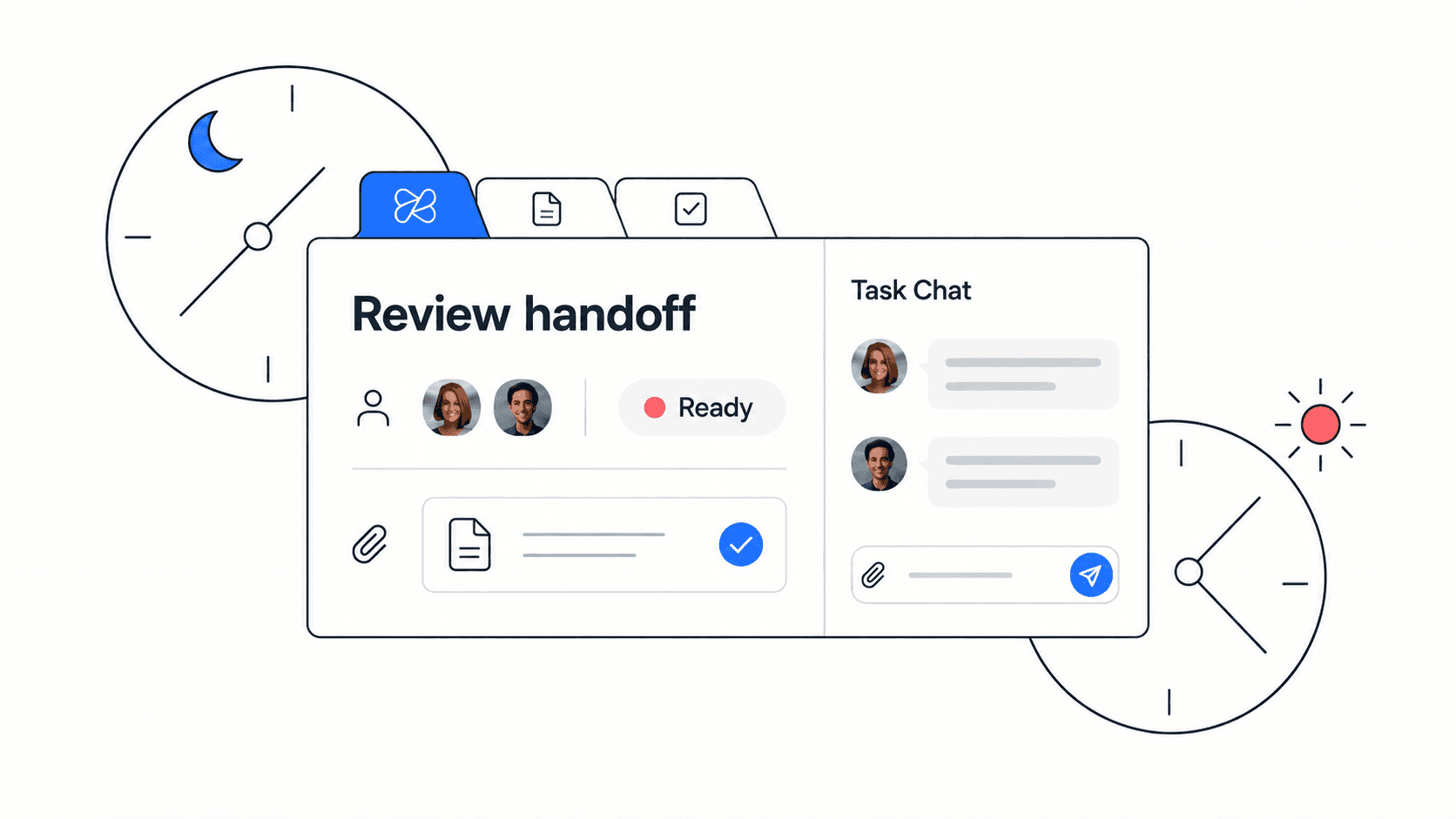
- Signal: blocked for more than two working days. What it means: the owner may not control the next step. What to do: assign a blocker owner and a decision deadline.
- Signal: repeated “almost done” status. What it means: acceptance criteria may be unclear. What to do: rewrite the task outcome and ask what proof of done looks like.
- Signal: one person owns every cross-functional follow-up. What it means: coordination risk is concentrated. What to do: split ownership by workstream.
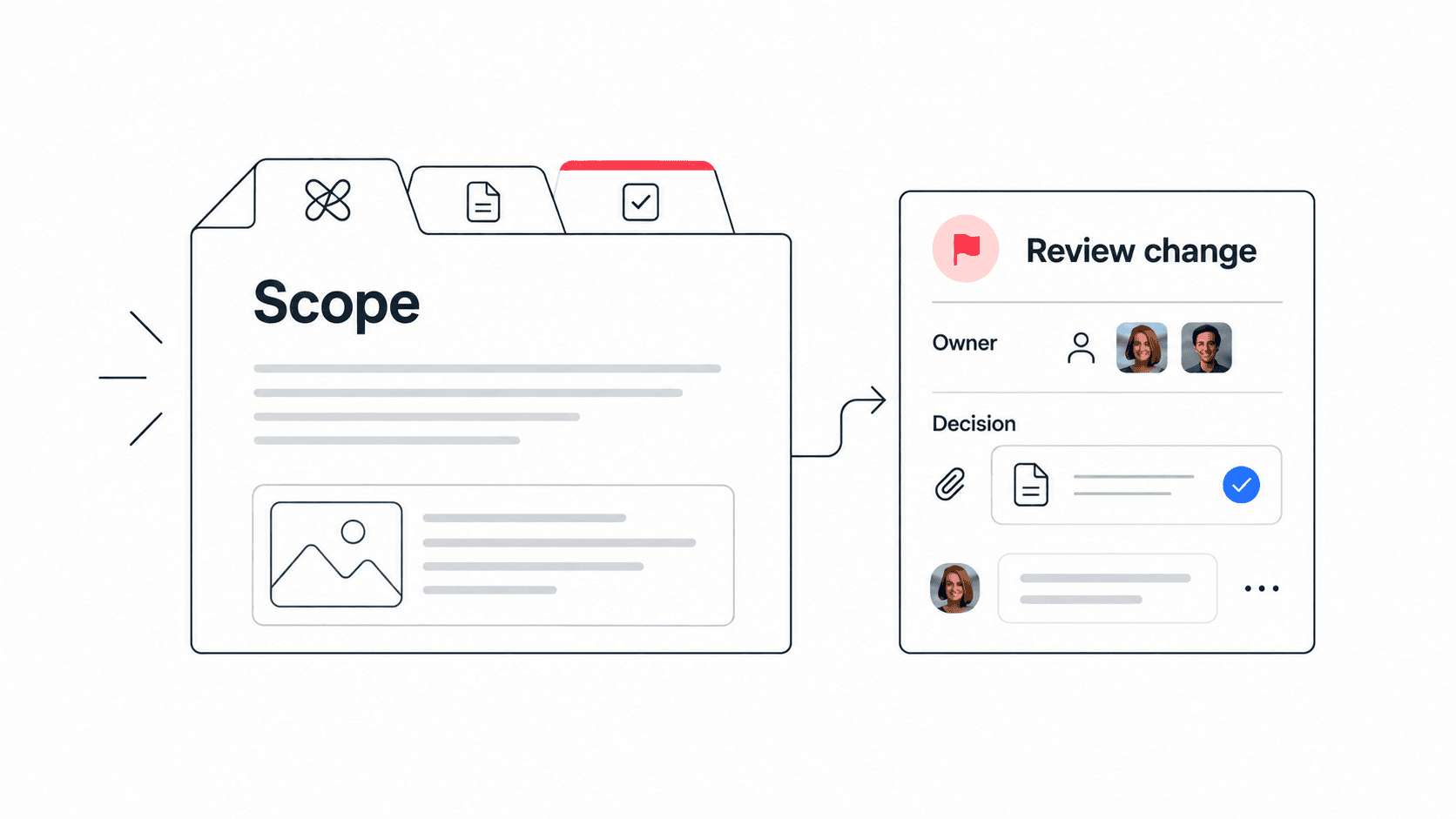
- Signal: high-priority work without linked context. What it means: the team may waste time asking for background. What to do: attach the brief, file, decision note, or customer example.
Decision rule: if a workload signal cannot trigger a next action, it is probably just reporting noise.
A simple weekly workload review process
The best workload management system is the one your team can repeat. A 20-minute weekly review is enough for many startups and small teams, especially when the task board is maintained during the week.
- Collect active work before the meeting. Ask each person to update their task status, blockers, and due dates before the review starts.
- Sort work by priority and deadline. Look first at customer commitments, launch blockers, revenue-impacting work, and tasks with dependencies.
- Find overloaded owners. Look for people with too many urgent items, repeated blockers, or no realistic focus time.
- Move, pause, or split work. Reassign work only when the receiving person has the context and capacity to make progress.
- Document the decision. Record what moved, why it moved, and what the next checkpoint will be.
A good review ends with fewer open questions than it started with. If the team leaves with the same owners, the same blockers, and the same vague priorities, the meeting was only a status update.


Weekly workload checklist
- Confirm every priority task has one clear owner.
- Mark blocked tasks and name the person who can unblock them.
- Limit active priority work for each person to what can realistically move this week.
- Check whether meetings are reducing the focus time of overloaded teammates.
- Attach the relevant doc, file, customer note, or decision record to each high-priority task.
- Write down what changed after the review so nobody has to reconstruct it from chat messages.
- Ask whether any teammate is carrying invisible coordination work that should become a visible task.
- Move one non-essential commitment out of the week when the plan is already at capacity.
If your review keeps exposing scattered context, connect the cadence to a dedicated workload management workspace where tasks, docs, files, chat, meetings, and AI support stay together.
Example: rebalancing a product launch week
Example: a six-person SaaS team is preparing a pricing-page launch. The designer owns final visuals, the developer owns implementation, the founder owns positioning, and support is preparing help docs. Halfway through the week, two customer bugs appear and the developer becomes the bottleneck.
- The team pauses one lower-priority visual polish task and keeps the pricing-page copy review moving.
- Support drafts the help-doc outline in parallel instead of waiting for final screenshots.
- The founder records the positioning decision in a shared doc so the designer does not need another meeting.
- The developer gets one clear launch-critical task and one bug fix instead of five competing requests.
Example outcome: the launch still moves forward because the team changed the plan before overload became a missed deadline.
The important part is that the team does not simply “help the busy developer.” It protects the launch goal by changing priority, reducing context switching, and moving context into shared notes so fewer people need live clarification.
Common workload management mistakes
- Mistake: using task count as the only capacity measure. Better approach: combine task count with urgency, complexity, blockers, and focus time.
- Mistake: reassigning work without context. Better approach: move the brief, files, decisions, and acceptance criteria with the task.
- Mistake: treating every request as urgent. Better approach: define what must finish this week and what can wait.
- Mistake: hiding support work. Better approach: make reviews, onboarding help, and customer interruptions visible as real work.
- Mistake: ending reviews with discussion only. Better approach: finish with changed owners, due dates, and documented decisions.
Mistake to avoid: do not use workload management as a way to police every hour. The purpose is to protect delivery and focus, not to make people justify normal thinking time or recovery time.
For teams that already manage projects in separate apps, this is also a good moment to review your broader project management software setup and decide whether tool fragmentation is making workload harder to see.
How Edworking supports workload management
Edworking helps teams turn workload management from a meeting habit into a connected workflow. Tasks show ownership and due dates, Docs hold the brief and decisions, Files keep supporting assets nearby, Chat captures quick discussion, Video Calls support deeper reviews, and Edworking Brain can help summarize context or answer workspace questions.
- Use Tasks to track owners, status, priorities, blockers, and due dates.
- Use Docs to keep project briefs, decision logs, review notes, and acceptance criteria linked to the work.
- Use Chat and Video Calls for the conversations that need speed or nuance.
- Use Edworking Brain to help teammates find context without searching across disconnected tools.
That connection is what makes workload management practical. When the task, brief, conversation, and meeting summary live together, reassigning work does not mean rebuilding the full context from scratch.
A practical next step is to compare your current process with Edworking’s project management workspace and the broader guide to getting started with Edworking.
FAQs
Use workload visibility to protect the work that matters
Workload management is not about squeezing more output from every person. It is about seeing pressure early enough to make better choices. When owners, blockers, context, and decisions are visible, a small team can move faster with less confusion and fewer last-minute tradeoffs.
- Keep the review short, but make the outcome concrete.
- Move work with its context, not just with a new owner name.
- Use the same workspace for tasks, docs, files, chat, meetings, and AI support so workload decisions stay traceable.
- Review the system itself every month: if the same overload pattern keeps returning, the team may need clearer priorities, fewer parallel projects, or a different ownership model.
Edworking gives teams one place to manage tasks, docs, files, chat, video calls, and AI-assisted workspace context. If your workload reviews are currently split across spreadsheets, messages, and meetings, try building the next one in Edworking’s all-in-one workspace.